
Apple Music doesn’t just work on iPhones. If you’ve switched to Android but still want your playlists, family sharing, and personalized stations, you can use Apple Music just fine - and it’s easier than you think. Millions of Android users run Apple Music every day, and if you’re one of them, you’re probably wondering how to get it set up right without losing your library or running into glitches.
First, you need to know: Apple Music on Android isn’t a stripped-down version. It’s the full service, with the same 100 million songs, spatial audio, lossless quality, and curated playlists you’d get on an iPhone. The interface looks a little different because it follows Android’s design language, but the core experience? Identical. You don’t need an Apple device to use it. You just need the app and an active subscription.
Download and Install the Apple Music App on Android
Go to the Google Play Store on your Android phone. Search for "Apple Music". Look for the official app with the red Apple logo and the words "Apple Music" underneath. Tap "Install". That’s it. No Apple ID login yet - just install the app.
Don’t download it from third-party sites. Some shady apps copy the Apple Music name and bundle malware. Stick to the Play Store. Apple’s app is over 100 MB, so make sure you have enough space and a stable Wi-Fi connection. Once installed, open it.
Sign In with Your Apple ID
When you open the app for the first time, you’ll see a login screen. Tap "Sign In". Enter your Apple ID and password. If you’ve forgotten it, tap "Forgot Apple ID or password?" - you’ll get a reset link sent to your email or phone number linked to your account.
Here’s the thing: if you’re already paying for Apple Music on an iPhone or iPad, your subscription works here too. You don’t pay again. Apple Music subscriptions are tied to your Apple ID, not your device. So if you’ve got a Family Plan, your whole family can stream on Android, iOS, or even a smart speaker.
Two-factor authentication? It’ll ask for it. If you’re not already logged in on another Apple device, you might get a code sent to your trusted phone or email. Just enter it. No big deal.
Set Up Your Library and Playlists
Once you’re signed in, Apple Music will start syncing your library. This includes:
- Your personal playlists (created on iPhone, Mac, or web)
- Songs you’ve liked (the "Thumbs Up" tracks)
- Music you’ve downloaded for offline listening
- Radio stations you follow
- Your For You recommendations
It usually takes 30 seconds to a few minutes, depending on how big your library is. You’ll see a progress bar at the top. If it’s taking longer than five minutes, check your internet connection. Switch from mobile data to Wi-Fi if you can.
Don’t panic if your playlists don’t show up right away. Apple Music doesn’t sync instantly. It queues up your data and pulls it in the background. Close and reopen the app if you’re impatient. It’ll catch up.
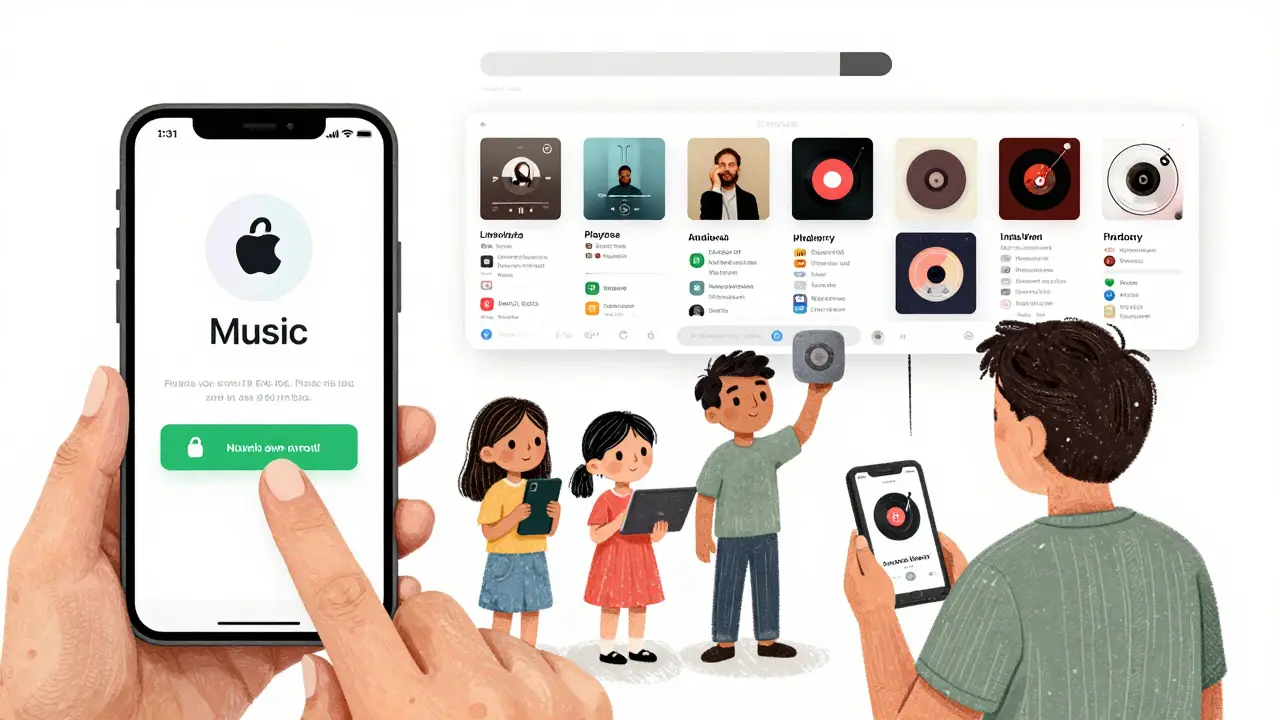
How to Navigate the Android Interface
The Android app has four main tabs at the bottom:
- Library - Your music, playlists, albums, and artists.
- Search - Find songs, playlists, or artists. Type "Beyoncé" and it’ll show you albums, radio stations, and fan-made playlists.
- Listen Now - Your personalized feed. This is where Apple’s algorithms show you new music based on what you’ve liked. It’s smarter than you think.
- Radio - Apple Music Radio stations like Beats 1, Country, Hip-Hop, and more.
Swipe up on any song or playlist to see options: add to library, download for offline, share, or add to a playlist. Long-press a song to get a quick menu with "Add to Up Next" or "Play Next".
The playback bar at the bottom is always visible. Tap it to expand the now-playing screen. You can skip, pause, rewind, adjust volume, and toggle between shuffle and repeat. Swipe left on the playback bar to see lyrics in real time - yes, even on Android.
Use Offline Mode and Download Music
One of the biggest perks of Apple Music is being able to download music for when you don’t have internet. This is huge for commuters, travelers, or anyone with spotty data.
To download:
- Go to a playlist or album.
- Tap the three dots (⋯) next to the title.
- Select "Download".
You’ll see a cloud icon with a downward arrow turn into a green checkmark. That means it’s saved to your phone. You can find downloaded music in the "Library" tab under "Downloads".
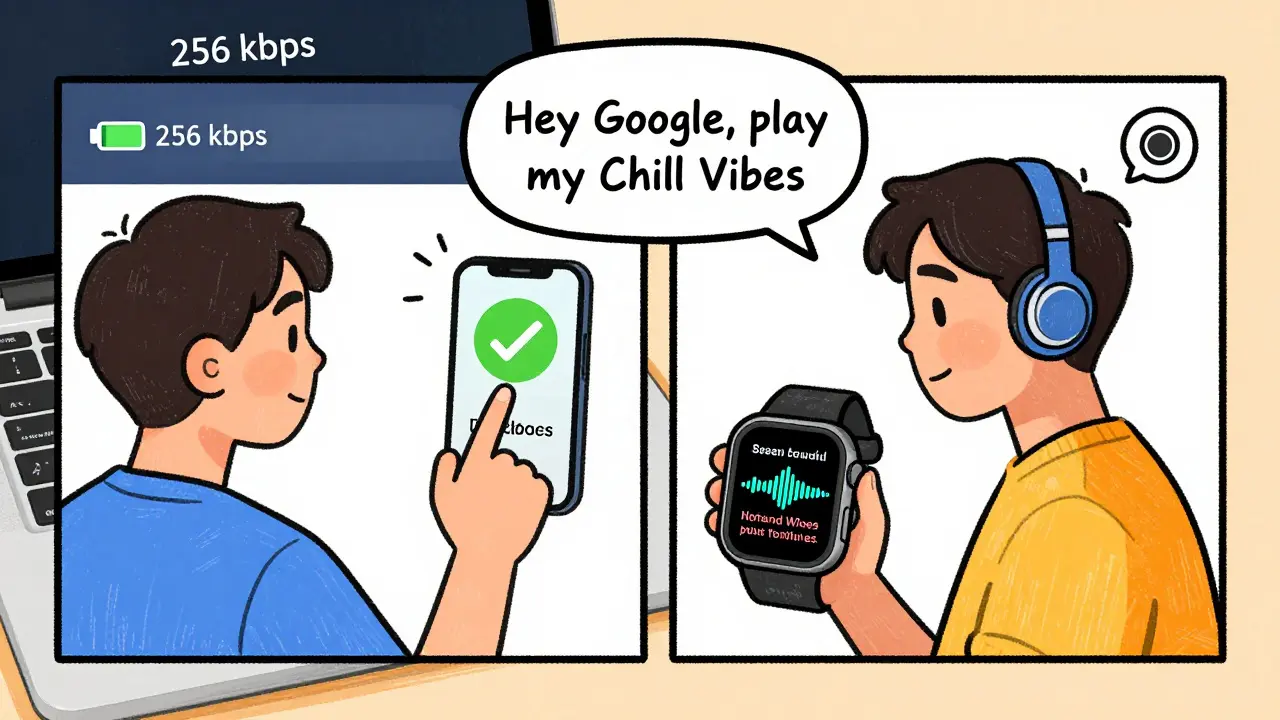
Storage tip: Apple Music files are high quality. A 3-minute song in lossless audio can be 30 MB. If you’re low on space, go to Settings > Music > Download Quality and switch from Lossless to High Quality (256 kbps). You won’t notice the difference on most headphones.
Control Playback with Android Widgets and Smart Devices
Android lets you put music controls right on your home screen. Long-press an empty spot, tap "Widgets", then find "Apple Music". Drag the "Now Playing" widget to your home screen. Now you can pause, skip, or shuffle without opening the app.
Pairing with smart speakers? Apple Music works with Google Home, Amazon Echo, and even Sonos. Say "Hey Google, play my Apple Music playlist" - and it will. Just make sure you’ve linked your Apple Music account in the Google Home app under "Music Services".
Wearables? If you have a Wear OS smartwatch, install the Apple Music app on it. You can play music directly from your wrist - no phone needed. Just make sure your phone is on the same Wi-Fi network.
Fix Common Issues on Android
Some users run into problems. Here’s how to fix them:
- App crashes on launch? Clear the cache: Go to Settings > Apps > Apple Music > Storage > Clear Cache. Don’t clear data unless you’re ready to re-login.
- Music won’t play? Check if you’re logged in. Sometimes the app logs you out after an update. Reopen it and sign back in.
- Downloads not syncing? Go to Settings > Music > Sync Library and toggle it off, then on again. Wait a minute.
- Lyrics not showing? Make sure you’re streaming, not playing downloaded files. Lyrics only work with streaming.
- Sound quality is poor? Go to Settings > Music > Audio Quality. Make sure "Lossless" or "High Quality" is selected. If you’re on mobile data, it might be throttling to save bandwidth.
If none of that works, uninstall and reinstall the app. Your library won’t disappear - it’s stored in the cloud. Just sign back in.
Why Apple Music on Android Is Worth It
Even if you’re not an Apple fan, Apple Music on Android has real advantages:
- It’s the only streaming service with lossless audio and spatial audio included at no extra cost.
- Its recommendation engine is smarter than Spotify’s for deep cuts and obscure artists.
- You get access to Apple Music 1 - live radio hosted by real DJs, not algorithms.
- Family plans let up to six people use it for $16.99/month - cheaper than two individual plans.
- It integrates with Siri, even on Android. Just hold the power button and ask: "Play my Chill Vibes playlist."
Most people switch to Apple Music because they already own Apple devices. But if you’re on Android and you like your music to be high-fidelity, well-curated, and always available - Apple Music is one of the best choices out there.
Can I use Apple Music on Android without an Apple ID?
No. Apple Music requires an Apple ID to sign in. You don’t need an iPhone or iPad, but you do need an Apple ID to access your account, playlists, and subscription. You can create a free Apple ID on the web if you don’t have one.
Is Apple Music better than Spotify on Android?
It depends. Spotify has better social features - sharing playlists, collaborative feeds, and user-generated content. Apple Music has better sound quality (lossless and spatial audio are free), smarter recommendations, and deeper integration with Siri. If you care about audio fidelity and curated playlists, Apple Music wins. If you want social sharing and discovery through friends, Spotify might feel more natural.
Do I lose my music if I cancel my Apple Music subscription?
Yes. Apple Music is a streaming service, not a download store. When you cancel, you lose access to all songs, playlists, and albums you didn’t buy from the iTunes Store. Any music you downloaded for offline listening will stop playing. Songs you purchased from iTunes (with a green arrow) stay on your device.
Can I use Apple Music on multiple Android phones?
Yes. A single Apple Music subscription lets you stream on up to 10 devices at once - including Android phones, tablets, computers, and smart speakers. Each person in a Family Plan gets their own profile, so you can have six different accounts all using Apple Music on Android.
Why is Apple Music lagging on my Android phone?
Lag usually comes from background apps or outdated Android software. Try restarting your phone. Update your OS to the latest version. If that doesn’t help, go to Settings > Apps > Apple Music > Battery and turn off "Optimize battery usage" for the app. Also, check if you’re using a custom launcher - some third-party launchers interfere with media controls.