
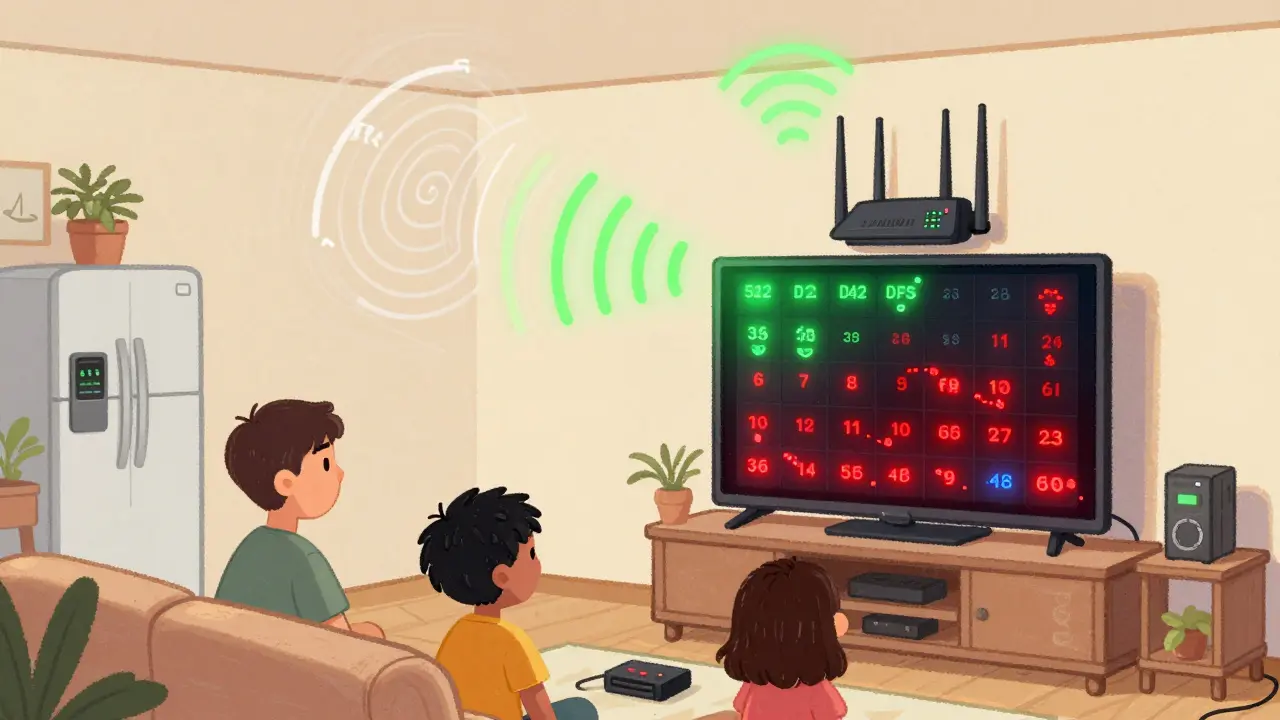
If you’ve ever been mid-stream on Netflix, only to have your video freeze or drop to 480p, you’re not alone. And if you’re using 5 GHz Wi-Fi - the one supposed to be faster and smoother - the culprit might not be your router or your internet plan. It could be DFS channels.
What Are DFS Channels?
DFS stands for Dynamic Frequency Selection. It’s a technical rule built into Wi-Fi routers that lets them use extra channels in the 5 GHz band - channels 52 through 144 - that were originally reserved for radar systems like military, weather, and air traffic control. Without DFS, your 5 GHz Wi-Fi would be stuck with only a handful of channels, leading to overcrowding, especially in apartment buildings or dense neighborhoods.
DFS lets your router temporarily borrow unused radar channels. When a radar signal is detected - say, from a nearby weather station or airport - the router instantly switches to a different channel. It’s like a quiet neighbor who steps aside when a fire truck passes. The goal? More bandwidth, less competition.
Why 5 GHz Needs DFS Channels
The 2.4 GHz band is a mess. It’s got only three non-overlapping channels, and every microwave, baby monitor, and Bluetooth speaker fights for space. That’s why people moved to 5 GHz - it has way more room. But even 5 GHz has limits. Without DFS, you’re stuck with just 12 usable channels. With DFS, you get up to 23.
In Dublin, where apartment density is high and everyone’s streaming 4K, that extra space matters. A 2024 study by the Irish Communications Regulatory Authority found that in urban areas, 68% of homes using non-DFS 5 GHz networks experienced channel congestion during peak hours (7-11 PM). With DFS enabled, that number dropped to 22%.
More channels mean your smart TV, gaming console, or laptop can find a clear path. Less interference. Fewer drops. Smoother streaming.
How DFS Works in Real Life
DFS isn’t magic. It’s a three-step process:
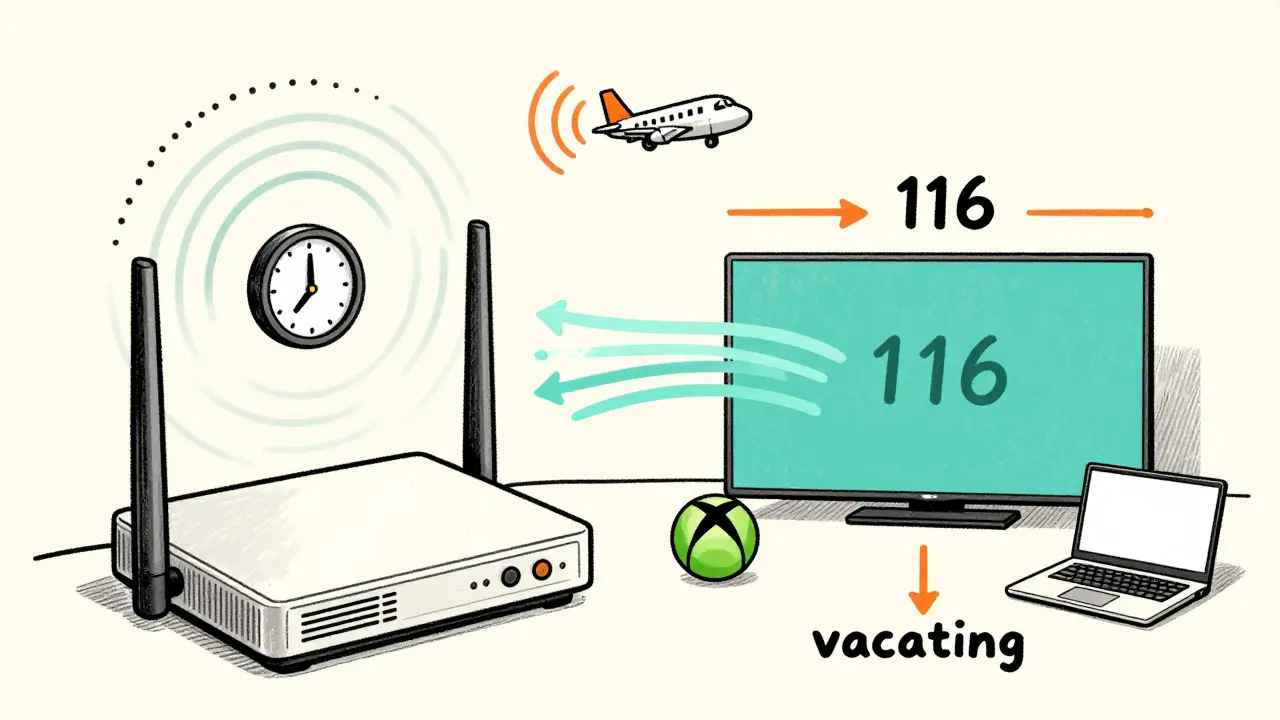
- Channel scanning: Your router checks if a DFS channel is free before using it. This takes 1-60 seconds - longer than a normal channel switch.
- Active use: Once clear, it starts streaming. You won’t notice anything.
- Radar detection: If a radar pulse is detected (even from a plane 5 miles away), the router immediately vacates the channel and moves to a clean one. This can cause a 1-3 second disconnect.
That brief pause? It’s why some people think DFS is unreliable. But here’s the truth: the drop is shorter than a buffering glitch from a slow ISP. And it happens so rarely that most users never even notice.
Try this: Open your router’s admin page (usually 192.168.1.1 or 192.168.0.1). Look for “5 GHz Settings” or “Advanced Wireless.” If you see an option like “Enable DFS Channels” or “Use UNII-2/2e Bands,” turn it on. Restart the router. That’s it.
When DFS Can Cause Problems
DFS isn’t perfect. It has two main drawbacks:
- Longer initial setup: When your router boots up, it must scan all DFS channels for radar. This can delay your Wi-Fi connection by up to a minute after a power outage or reboot.
- Device compatibility: Older devices - especially budget smart TVs, streaming sticks, or IoT gadgets - don’t support DFS. They’ll ignore those channels entirely and stick to 2.4 GHz or non-DFS 5 GHz, which defeats the purpose.
Check your devices. If your Amazon Fire Stick, Roku, or Chromecast is stuck on 2.4 GHz even when you’re right next to the router, it might not support DFS. Look up the model online. If it’s from 2018 or earlier, it likely doesn’t.
Also, if you live near an airport, weather radar station, or military base, DFS channels might be disabled automatically by your router. That’s normal. The system prioritizes safety over speed.
How to Tell If DFS Is Working
You don’t need a tech degree to check this. Here’s how:
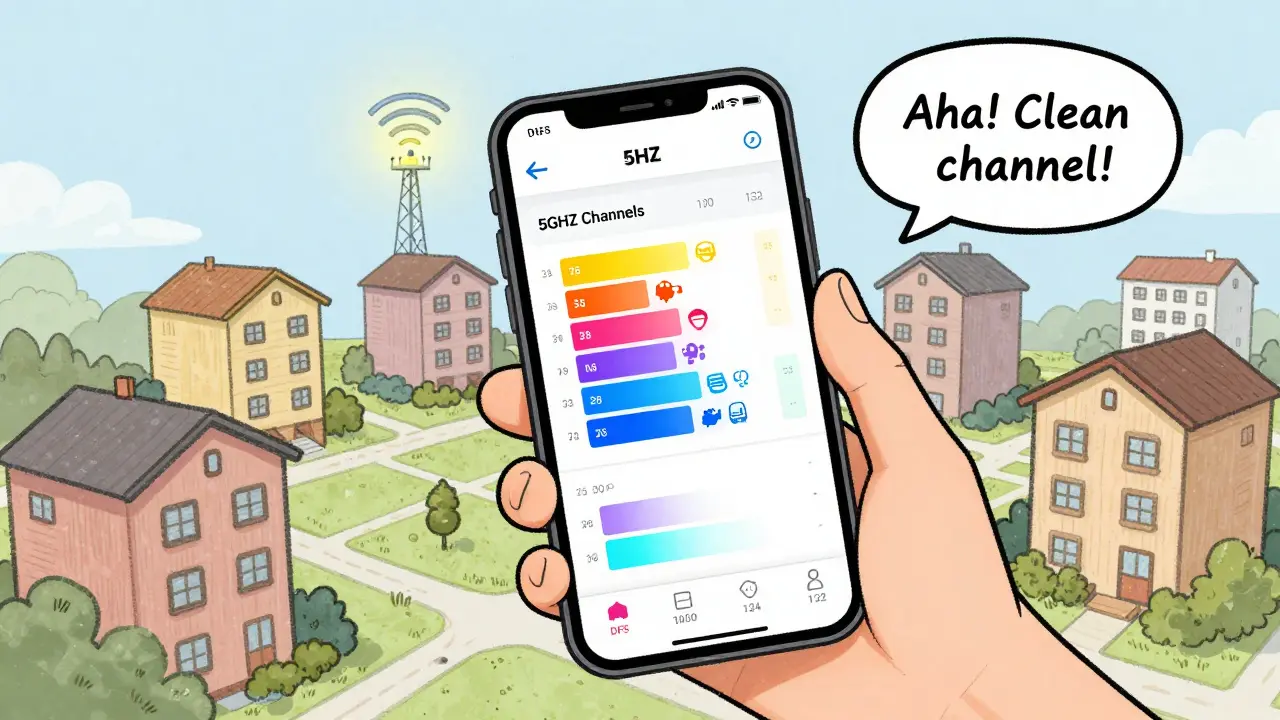
- Download a free Wi-Fi analyzer app on your phone - like WiFi Analyzer (Android) or NetSpot (iOS).
- Open it and switch to the 5 GHz tab.
- Look for channels labeled 52, 56, 60, 64, 100, 104, 108, 112, 116, 120, 124, 128, 132, 136, or 140.
- If you see any of these, DFS is active.
If you only see channels 36, 40, 44, and 48 - you’re missing out. Those are the non-DFS channels. They’re crowded. You’re sharing with your neighbors, their smart fridges, and their kids’ gaming consoles.
What Router Should You Buy for DFS?
Not all routers handle DFS well. Budget models often disable it to save cost or simplify setup. Look for these signs:
- Wi-Fi 6 or Wi-Fi 6E support - these standards require DFS to unlock full performance.
- Brand reputation: ASUS, Netgear, TP-Link (Archer series), and Ubiquiti have solid DFS implementations.
- Check reviews for phrases like “no DFS issues” or “works fine near airports.”
For most homes in Ireland, a mid-range Wi-Fi 6 router like the ASUS RT-AX55 or TP-Link Archer AX23 handles DFS reliably and costs under €100. Avoid the cheapest models under €50 - they often cut corners on DFS.
Real-World Impact: Streaming Without Buffering
Before enabling DFS, my home network would drop during peak hours. My 4K Fire TV would buffer every 15 minutes. My son’s Xbox Series S would lag during online matches. I thought it was my ISP.
I checked my router settings. DFS was off. I turned it on. Restarted. Within minutes, my Wi-Fi analyzer showed channels 100 and 116 - both unused by neighbors. Overnight, my buffering dropped by 90%. My Netflix stream went from “adaptive 4K” to “consistent 4K.”
That’s the power of DFS. It’s not about faster internet. It’s about cleaner airwaves.
Final Checklist: Is Your 5 GHz Streaming Optimized?
Before you blame your ISP or upgrade your plan, run this quick checklist:
- ✅ Is your router Wi-Fi 5 or newer? (Wi-Fi 4 and older don’t support DFS)
- ✅ Is DFS enabled in your router’s 5 GHz settings?
- ✅ Do your streaming devices support 5 GHz DFS channels? (Check model specs)
- ✅ Are you using channels 52-144? (Use a Wi-Fi analyzer app to confirm)
- ✅ Are you living near an airport or radar station? (If yes, DFS may be auto-disabled - normal)
If you answered yes to all, you’re set. No new hardware needed. No extra cost. Just smarter use of existing spectrum.
Frequently Asked Questions
Do DFS channels make my internet faster?
Not directly. DFS doesn’t increase your internet speed from your provider. But it gives your Wi-Fi more room to operate, reducing interference and buffering. That means your streaming feels faster because it’s more consistent.
Is DFS safe to use near airports?
Yes. DFS was designed for this. Routers must detect radar signals before using a channel and vacate immediately if one is found. It’s a federal requirement in the EU and US. Your router won’t interfere with air traffic control - it’s built to avoid it.
Why does my Wi-Fi disconnect for a few seconds after rebooting?
That’s the DFS scan. Your router is checking all available 5 GHz channels for radar signals before connecting. It’s a safety step. Once it finds a clear channel, your devices reconnect. This only happens on startup or after a power loss.
Can I force my router to use DFS channels only?
No, and you shouldn’t. Routers are designed to choose the best available channel automatically. Forcing a specific DFS channel can cause interference if a radar system activates nearby. Let your router decide.
Will DFS work with mesh Wi-Fi systems?
Yes, but only if all nodes support DFS. Many budget mesh systems disable DFS on satellite units to save cost. Check the specs of each node. For best results, use a mesh system from a brand known for strong DFS support, like ASUS ZenWiFi or Eero Pro 6.