
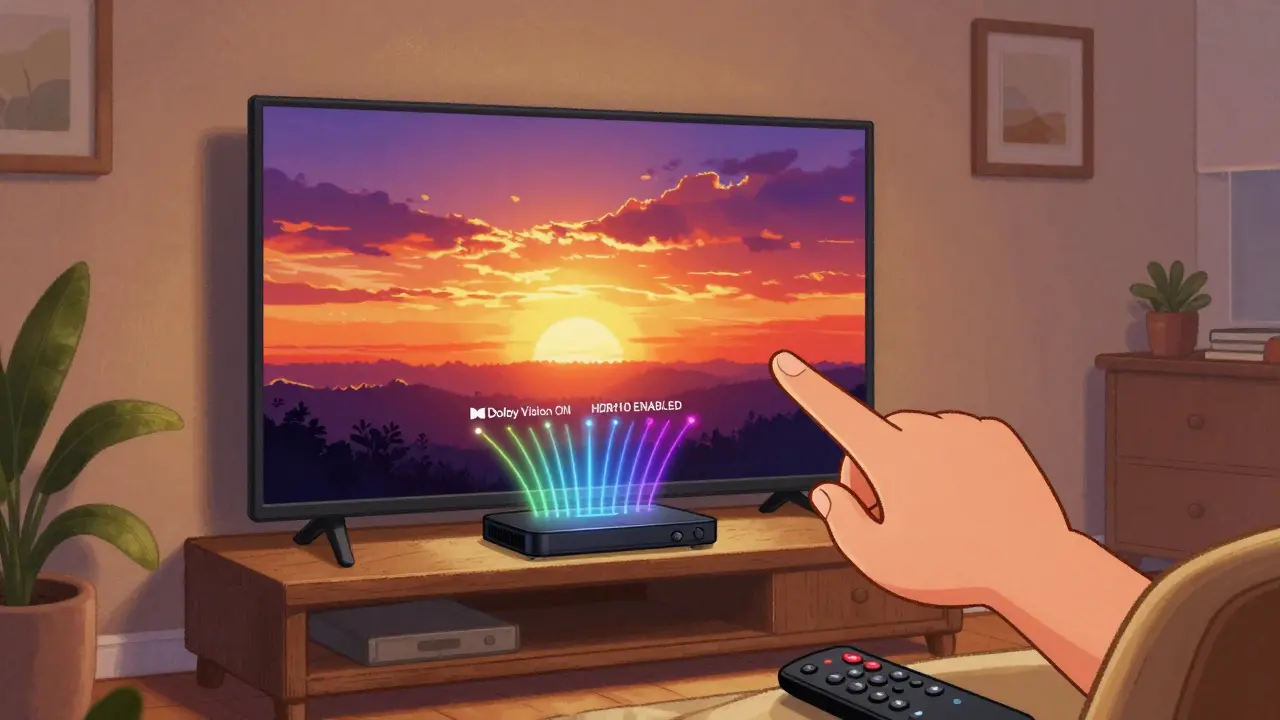
Most people think their 4K TV is doing its best when they stream Netflix or Disney+. But if HDR isn’t turned on, you’re missing out on half the picture. Colors look flat, blacks don’t go deep enough, and bright scenes lose detail. It’s not your TV’s fault-it’s the settings on your streaming device. Enabling Dolby Vision and HDR10 isn’t complicated, but it’s easy to miss. Here’s how to fix it.
Why HDR Matters More Than You Think
HDR stands for High Dynamic Range. It doesn’t just make things brighter. It lets your TV show more detail in dark shadows and bright highlights at the same time. A sunset isn’t just orange-it’s a gradient of gold, crimson, and deep purple. HDR lets your screen show that. Without it, you’re seeing a washed-out version.
Dolby Vision and HDR10 are the two main HDR formats used by streaming services. They’re not the same. Dolby Vision is smarter. It adjusts brightness and color scene by scene. HDR10 uses one setting for the whole movie. That’s why Dolby Vision often looks more lifelike. But not every device supports it. If you have an Apple TV 4K, a Roku Ultra, or a Fire TV Stick 4K Max, you’re good. Older models? You might only get HDR10.
Check Your Streaming Device First
Your TV might support HDR. But if your streaming box or stick doesn’t, it won’t send the signal. Start here:
- Go to the Settings menu on your streaming device.
- Find Display & Sound or Video Output.
- Look for HDR, Dolby Vision, or HDR10.
- Make sure it’s turned ON.
On Roku devices, you’ll see a toggle labeled "Enable HDR". On Apple TV, go to Settings > Video and Audio > HDR and choose "Dolby Vision" if available. Fire TV users need to check Display & Sounds > Display > HDR. If you don’t see the option, your device doesn’t support it. Amazon’s Fire TV Stick (2020) and earlier models don’t support Dolby Vision at all.
TV Settings Can Block HDR Too
Even if your streaming device is set right, your TV might be filtering out HDR. Many TVs have "Eco Mode" or "Energy Saving" turned on by default. These modes dim the screen and disable advanced video processing.
Go into your TV’s picture settings and look for:
- "Eco Mode" - turn it OFF
- "HDR Mode" or "HDR Signal Processing" - turn it ON
- "Auto Picture Mode" - disable it. Let the TV use "Movie" or "Cinema" mode instead
- "Dynamic Contrast" - turn this OFF. It crushes shadows
For Samsung TVs, check Picture Settings > Expert Settings > HDR+ Mode. For LG, go to Picture Options > HDR Effect. Sony TVs have a setting called “HDR Signal Format” - make sure it’s set to "Auto" or "Enhanced".
Which Streaming Services Support What?
Not every app sends the same HDR signal. Here’s what’s available as of 2026:
| Service | Dolby Vision | HDR10 | HDR10+ |
|---|---|---|---|
| Netflix | Yes (select titles) | Yes | No |
| Disney+ | Yes (most originals) | Yes | No |
| Apple TV+ | Yes (all originals) | Yes | No |
| Amazon Prime Video | Yes (select titles) | Yes | Yes (some titles) |
| Hulu | No | Yes | No |
| Max (HBO) | Yes (select titles) | Yes | No |
Look for the Dolby Vision logo on the show’s page. If it’s there, your device and TV need to be set up right to unlock it. Some shows, like Stranger Things or The Mandalorian, are mastered in Dolby Vision. If you’re watching them without it, you’re seeing a downgrade.
What If You Still Don’t See HDR?
Try this quick checklist:
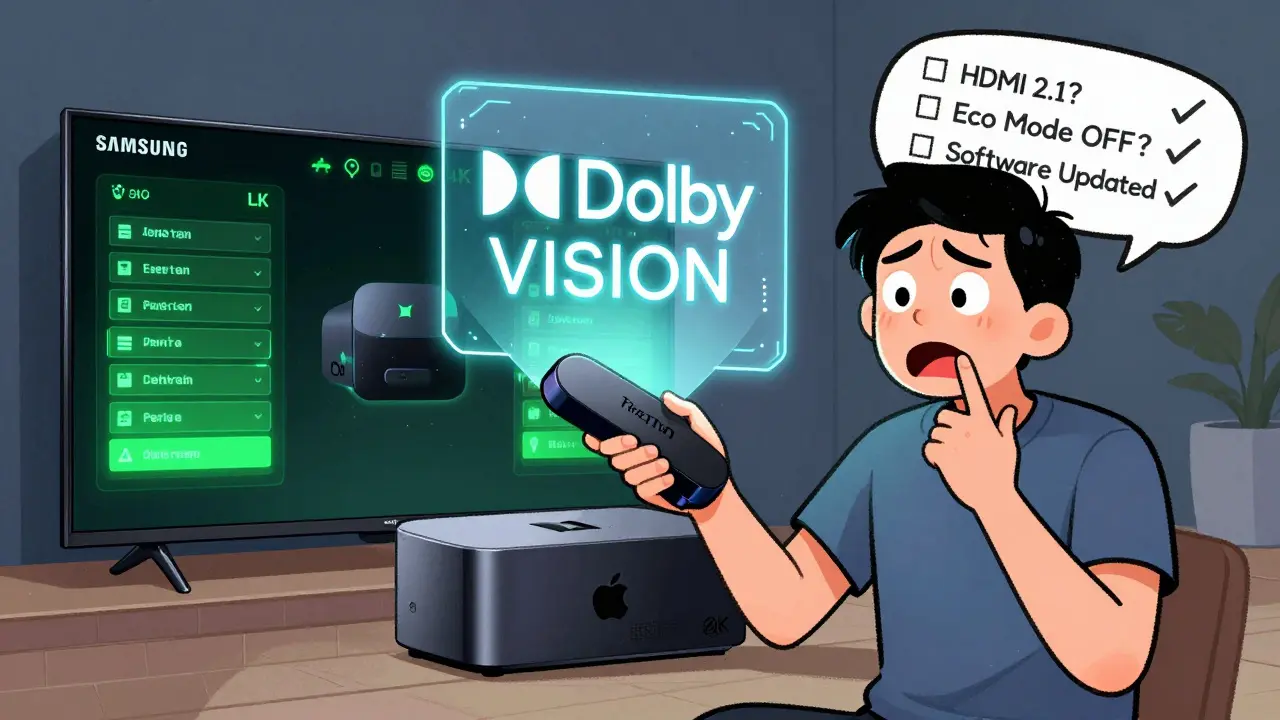
- Use the original HDMI cable that came with your device. Cheap cables can’t carry HDR signals.
- Plug into the HDMI port labeled "HDR" or "HDMI 2.1" on your TV. Not all ports support it.
- Restart your streaming device and TV. Sometimes the handshake fails.
- Check if your internet speed is over 25 Mbps. HDR needs more bandwidth. Netflix recommends 15 Mbps for HDR, but 25 Mbps is safer.
- Update your streaming device’s software. Older firmware can break HDR detection.
On Apple TV, go to Settings > System > Software Updates. On Roku, go to Settings > System > System Update. If there’s an update, install it. Many HDR fixes come in these patches.
Test It With a Known HDR Title
Don’t guess. Use a show you know is HDR. Play the first episode of The Crown on Netflix. If you see rich, deep blacks and glowing highlights on the chandeliers, you’re good. If it looks dull, go back and check every setting.
Another easy test: Planet Earth II on Apple TV+. The sunlight on the savannah should feel real. If it looks like a flat photo, HDR is off.
Is Dolby Vision Worth It Over HDR10?
Yes - if you have the gear. Dolby Vision’s dynamic metadata adjusts brightness for every frame. That means a dark scene in Blade Runner 2049 won’t look muddy, and a solar flare in Interstellar won’t blow out. HDR10 is fine for most people. But if you’ve ever watched a movie and thought, "Why doesn’t it look like the theater?" - Dolby Vision fixes that.
There’s one catch: Dolby Vision requires more processing power. If your streaming device is older than 2020, it might struggle. Stick with HDR10 if you have a Roku Express or Fire TV Stick Lite. No point in forcing it.
What About HDR10+?
HDR10+ is Samsung’s answer to Dolby Vision. It’s dynamic like Dolby Vision, but open-source. It’s only on Amazon Prime Video and a few Samsung TVs. If you have a Samsung QLED and use Prime Video, turn it on. Otherwise, ignore it. Most content still uses Dolby Vision or HDR10.
Final Tip: Don’t Assume It’s Working
Even if your device says "HDR On," it might not be. Some TVs display "HDR" on the screen when they’re just upscaling SDR content. Look for the logo. On Netflix, a small Dolby Vision icon appears in the top-right corner when it’s active. On Disney+, you’ll see "HDR" or "Dolby Vision" next to the title.
When in doubt, compare. Watch the same scene on two devices - one with HDR on, one without. The difference isn’t subtle. It’s the difference between watching a photo and stepping into a painting.