
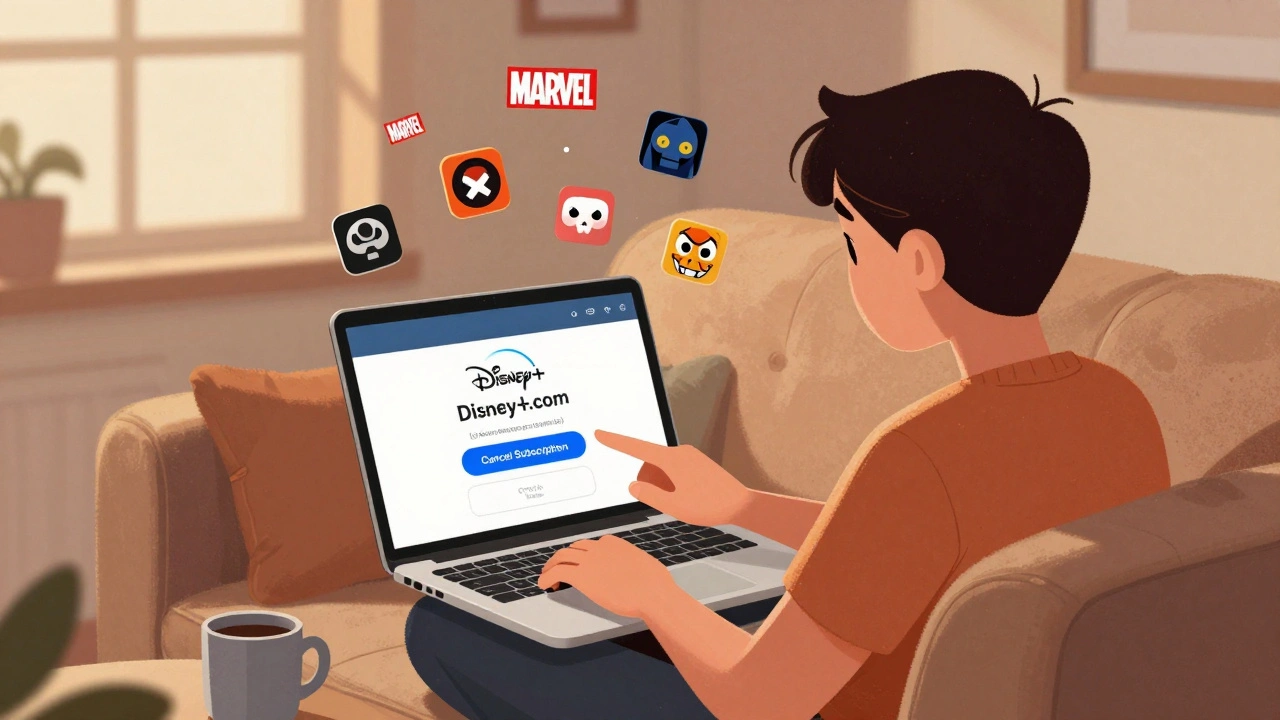
If you’re thinking about canceling Disney+, you’re not alone. Millions of people sign up for the service hoping to binge Marvel, Star Wars, or Pixar movies - but then realize they’re paying for content they rarely watch. The good news? Canceling Disney+ is straightforward. You don’t need to call customer service, wait on hold, or jump through hoops. It’s all done online, in minutes, and you won’t lose access until your next billing date.
Step-by-step: How to Cancel Disney+ on Any Device
You can cancel Disney+ from any device - whether you’re on a phone, tablet, computer, or smart TV. The process is the same everywhere because your account is tied to your email, not your device.
- Open a web browser on your computer or mobile device.
- Go to disneyplus.com and sign in with your account.
- Click your profile icon in the top-right corner.
- Select Account from the dropdown menu.
- Scroll down to the Subscription section.
- Click Cancel Subscription.
- Follow the prompts to confirm you want to cancel.
That’s it. You’ll see a confirmation message saying your subscription will end at the end of your current billing period. You’ll still have access to everything until then - no sudden loss of shows or movies.
Canceling Disney+ on iPhone or iPad
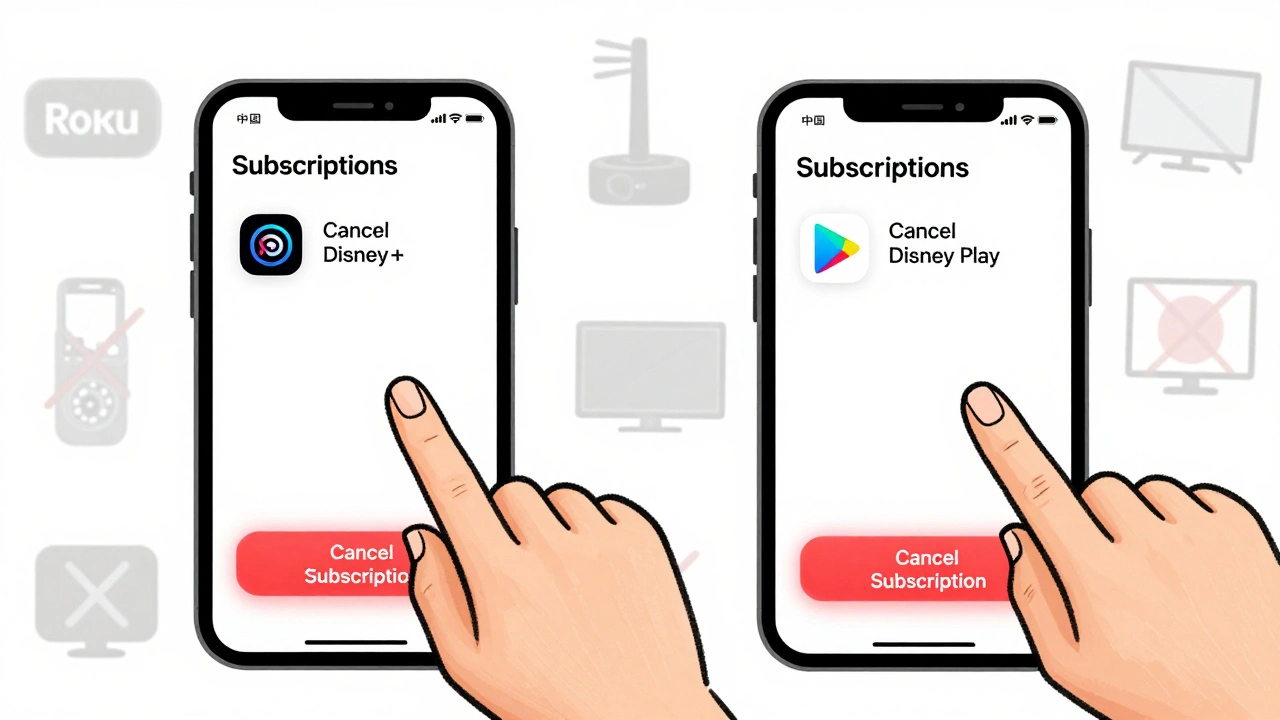
If you signed up through the App Store, you can’t cancel directly on the Disney+ app. Apple handles billing, so you have to go through Apple’s system.
- Open the Settings app on your iPhone or iPad.
- Tap your name at the top.
- Select Subscriptions.
- Find Disney+ in the list and tap it.
- Tap Cancel Subscription.
- Confirm your choice.
Even if you cancel through Apple, your Disney+ account stays active until the end of the billing cycle. You won’t be charged again, and you can still watch until then.
Canceling Disney+ on Android or Google Play
If you signed up using Google Play, the cancellation process is similar to Apple’s.
- Open the Google Play Store app.
- Tap the hamburger menu (three horizontal lines) in the top-left.
- Select Subscriptions.
- Find Disney+ and tap it.
- Tap CANCEL SUBSCRIPTION.
- Follow the on-screen instructions to confirm.
Just like with Apple, canceling through Google Play stops future payments but doesn’t cut off your access immediately. You keep watching until your next billing date.
Canceling Disney+ on Smart TVs or Streaming Devices
Don’t try to cancel from your Roku, Fire Stick, or Samsung TV. Those devices only let you watch - they don’t manage payments. If you signed up through one of these platforms, you still need to cancel through the original billing source.
- If you paid via Roku: Cancel through my.roku.com
- If you paid via Amazon: Go to Amazon’s Manage Subscriptions page
- If you paid via Apple or Google: Use the steps above for iPhone or Android
Always check where your payment is being processed. Most people don’t realize they’re paying through Apple or Google - not Disney directly - until they try to cancel.
What Happens After You Cancel?
Canceling Disney+ doesn’t delete your account. Your profile, watch history, and saved shows stay intact. If you decide to resubscribe later, everything comes back exactly as you left it.
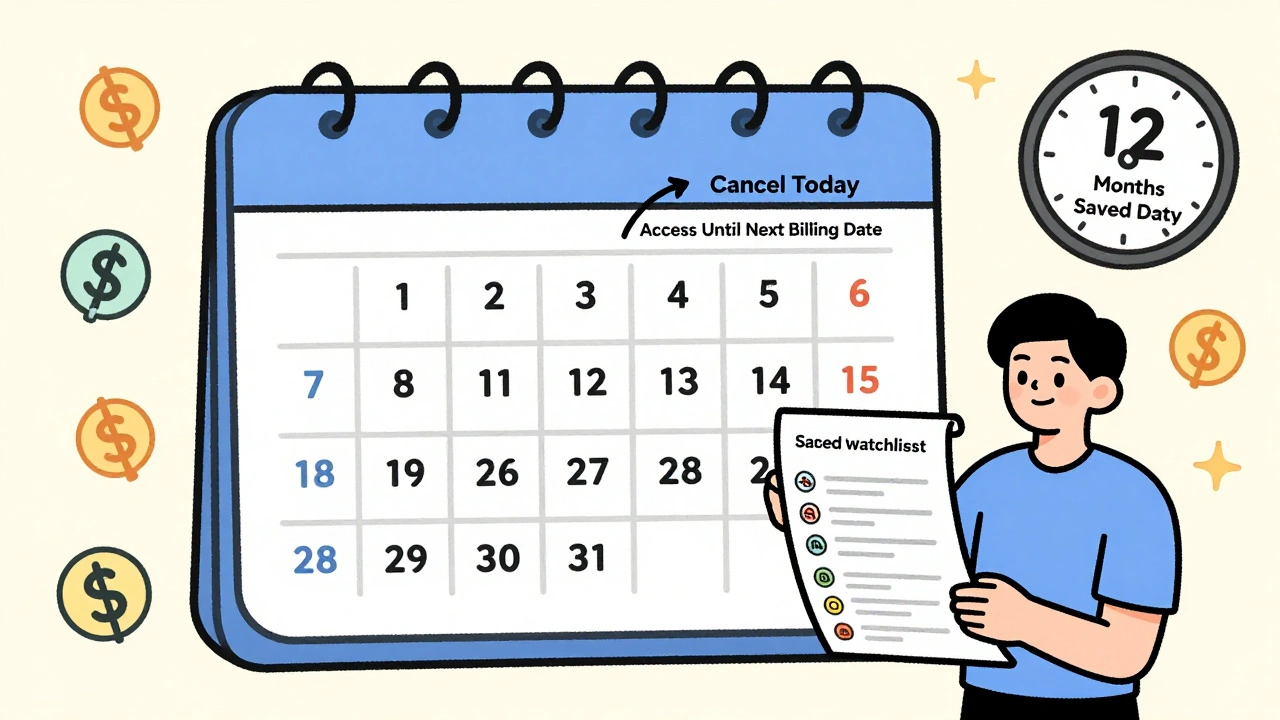
You’ll still have access to Disney+ until the end of your current billing period. For example, if you pay monthly on the 15th and cancel on the 10th, you’ll keep streaming until the 15th. No refunds are issued for unused days - but you’re not charged again after that.
Disney+ doesn’t charge cancellation fees. There’s no hidden cost. You’re only paying for the time you used.
Can You Get a Refund?
Disney+ does not offer refunds for partial months, even if you cancel early. This is standard across most streaming services. If you signed up for a free trial and canceled before it ended, you won’t be charged at all - so no refund is needed.
There’s one exception: if you were charged in error - like being billed twice, or after already canceling - you can contact Disney+ support. They’ll review your account and issue a refund if needed. But if you simply changed your mind, no refund is available.
Why People Cancel Disney+
People cancel for different reasons. Some realize they’re paying for content they don’t watch. Others find they’re juggling too many subscriptions - Disney+, Hulu, Netflix, Max, Apple TV+. The average U.S. household now pays for over five streaming services. That adds up to $80+ a month.
Others cancel because they’re waiting for a specific show to drop - like a new season of Andor or The Mandalorian - then plan to resubscribe later. Disney+ makes that easy. Your profile, watchlist, and favorites stay saved for up to 12 months after cancellation.
There’s also a trend of people switching to Disney+’s ad-supported plan to save money. If you’re canceling because of price, consider downgrading instead. The ad-supported tier costs $7.99/month - nearly $2 less than the ad-free plan.
How to Pause Instead of Cancel
Disney+ doesn’t offer a pause feature. But you can achieve the same result by canceling and then resubscribing later. Since your account stays active for 12 months, you won’t lose your data.
If you know you’ll be away for a few weeks - say, on vacation or during the holidays - canceling and coming back later is smarter than paying for nothing. You’ll save money without losing your place.
Common Mistakes When Canceling
Most people make the same three mistakes:
- Trying to cancel in the app - You can’t. You must go to the website or your billing provider’s site.
- Assuming you’ll get a refund - You won’t. No partial refunds for unused days.
- Forgetting to cancel through the right platform - If you signed up via Apple, you must cancel via Apple. Same with Google or Roku.
Double-check where your payment comes from before you start. Look at your bank statement or credit card history. The merchant name will tell you: "DISNEYPLUS.COM", "APPLE.COM/DC", or "GOOGLE.COM".
What to Do After Canceling
After you cancel, take a moment to review your other subscriptions. Are you paying for services you don’t use? Tools like Truebill, Rocket Money, or even your bank’s spending tracker can help you spot unused subscriptions.
If you’re canceling Disney+ to save money, consider switching to the ad-supported plan. You’ll still get all the same shows - just with 30-second ads before each episode. Most people don’t mind the ads once they realize how much they save.
You can always come back. Disney+ doesn’t penalize you for leaving. Your watchlist, profile, and viewing history remain intact for a full year. If you change your mind, just sign in and hit Subscribe again.
Can I cancel Disney+ anytime?
Yes, you can cancel Disney+ at any time. Your subscription won’t renew after your current billing period ends. You won’t be charged again, and you’ll keep access until that date.
Will I get a refund if I cancel mid-month?
No, Disney+ doesn’t issue refunds for partial months. You pay for the full billing cycle, and your access continues until the end of that period. If you cancel during a free trial, you won’t be charged at all.
Do I lose my watchlist if I cancel?
No. Your watchlist, profile, and viewing history are saved for up to 12 months after cancellation. If you resubscribe within that time, everything comes back exactly as you left it.
Can I cancel Disney+ through the app?
No, you can’t cancel through the Disney+ app on any device. You must cancel through the website or your billing provider - Apple, Google, Roku, or Amazon - depending on how you signed up.
What if I’m still being charged after canceling?
If you’re still being charged after canceling, check where you originally signed up. If you used Apple or Google, you may have missed canceling through their system. If you’re sure you canceled correctly, contact Disney+ support with your account details and transaction ID. They can investigate and issue a refund if there was an error.
Next Steps After Canceling
After you cancel, don’t just forget about it. Take 5 minutes to:
- Check your next billing date on your bank statement.
- Remove Disney+ from any smart TVs or streaming devices so you don’t accidentally sign back in.
- Consider switching to the ad-supported plan if you want to keep watching without paying full price.
- Review your other subscriptions - you might find another one you can cut.
Cancelling Disney+ isn’t a big deal. It’s just one subscription among many. Do it cleanly, at the right time, and you’ll save money without losing anything important. And if you change your mind? You can always come back - your favorites are waiting.