
You signed up for Peacock Premium because you wanted to watch Peacock Premium shows like Friday Night Lights, The Office, or live NFL games. But now you’re not watching it. Maybe you forgot you had it. Maybe you switched to another service. Or maybe you just don’t need it anymore. Either way, you want to cancel - and you don’t want to keep paying.
Canceling Peacock Premium isn’t hidden behind five menus or locked behind customer service hours. It’s straightforward. But if you’ve ever tried to cancel a streaming service before, you know how easy it is to get stuck in a loop. This guide cuts through the noise. Here’s exactly how to cancel Peacock Premium on any device - and what happens after you do.
How to Cancel Peacock Premium on a Web Browser
This is the easiest way to cancel, and it works whether you signed up on your phone, tablet, or smart TV.
- Open a web browser and go to peacocktv.com.
- Log in with the email and password you used to sign up.
- Click your profile icon in the top-right corner.
- Select Account from the dropdown menu.
- Under Subscription, click Manage Subscription.
- On the next page, scroll down and click Cancel Subscription.
- Follow the prompts to confirm. You’ll see a message saying your subscription will end at the end of your current billing cycle.
You won’t be charged again after your current period ends. You’ll still have access until then - so you can finish that season of Yellowstone or watch the final game of the NFL playoffs.
How to Cancel Peacock Premium on iPhone or iPad
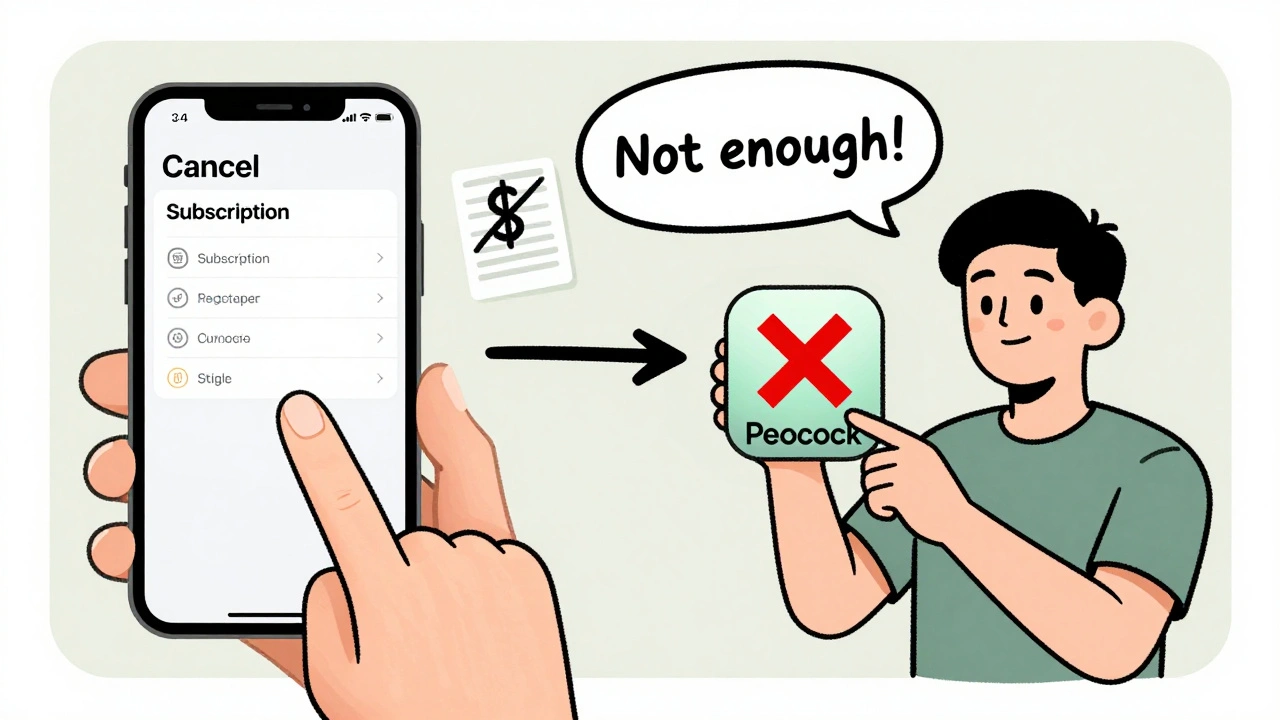
If you signed up through the Apple App Store, you can’t cancel inside the Peacock app. Apple controls the billing, so you have to go through Apple’s system.
- Open the Settings app on your iPhone or iPad.
- Tap your name at the top of the screen.
- Select Subscriptions.
- Find Peacock Premium in the list and tap it.
- Tap Cancel Subscription.
- Confirm you want to cancel when prompted.
Apple will send you a confirmation email. Peacock won’t charge you again after your current billing cycle ends. Your access continues until then.
How to Cancel Peacock Premium on Android
Same rule applies here. If you signed up through Google Play, you cancel through Google - not Peacock.
- Open the Google Play Store app on your Android phone or tablet.
- Tap the three horizontal lines in the top-left corner.
- Select Subscriptions.
- Find Peacock Premium and tap it.
- Tap CANCEL SUBSCRIPTION.
- Follow the on-screen steps to confirm.
Google will notify you that your subscription will end on your next billing date. You’ll keep access until that date. No refunds are issued for partial months.
How to Cancel Peacock Premium on Smart TVs or Streaming Devices
If you signed up directly through your Roku, Fire TV, Apple TV, or Samsung Smart TV, you cancel through the device’s account settings.
For Roku:
- Press the Home button on your Roku remote.
- Scroll to and select Streaming Channels.
- Highlight Peacock and press the * button on your remote.
- Select Manage Subscription.
- Choose Cancel Subscription and confirm.
For Amazon Fire TV:
- Go to My Apps & Channels.
- Find Peacock, then press the Menu button on your remote.
- Select Manage Subscription.
- Follow the prompts to cancel.
For Apple TV:
- Go to Settings.
- Select Users and Accounts.
- Choose Subscriptions.
- Select Peacock Premium and tap Cancel Subscription.
Each platform handles billing differently, but the result is the same: no more charges after your current period ends.
What Happens After You Cancel?
You won’t get a refund. Peacock doesn’t offer prorated refunds for partial months. But you won’t be charged again. You’ll keep access until the end of your current billing cycle.
For example: if you’re billed on the 15th of each month and you cancel on the 10th, you’ll still have access until the 15th. After that, your account will downgrade to Peacock Free - the free tier with ads and limited content.
You can still log in after cancellation. You’ll see a message saying your Premium access has ended. If you change your mind, you can resubscribe anytime. Your watch history and profiles stay saved.
Common Mistakes People Make When Canceling
Most people think they canceled when they just deleted the app. That’s not enough. Deleting the app doesn’t stop the payment. You have to cancel through the billing platform.
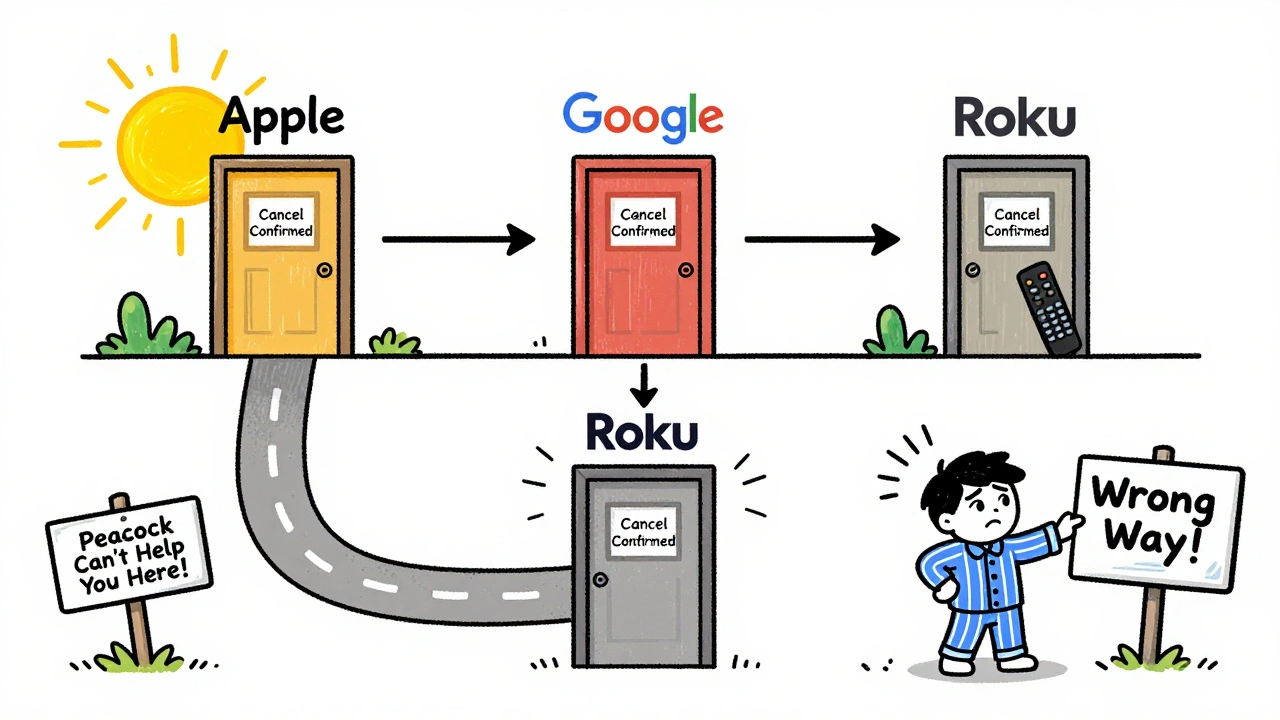
Another mistake: thinking you can cancel by calling Peacock. Peacock doesn’t handle billing directly for App Store, Google Play, or Roku users. They can’t cancel your subscription for you. You have to do it yourself through Apple, Google, or Roku.
And don’t wait until your next billing date to cancel. If you cancel too late, you’ll be charged again. Cancel at least 24 hours before your renewal date to be safe.
Can You Get a Refund?
Peacock’s policy is clear: no refunds for unused time. That’s standard across most streaming services. If you signed up for a free trial, you won’t be charged unless you didn’t cancel before it ended. If you were charged by accident - say, after canceling - contact the billing platform directly.
For Apple users: visit reportaproblem.apple.com.
For Google users: go to pay.google.com and request a refund.
For Roku: contact Roku Support directly through their website.
Peacock customer service can’t issue refunds - only the billing platform can.
What You’ll Get After Canceling
You won’t lose everything. Peacock Free still gives you access to thousands of hours of content - including full seasons of SNL, Law & Order, and classic movies. You’ll just see ads between shows, and you won’t get access to live sports, Peacock Originals, or 4K streaming.
If you only watch a few shows a month, the free tier might be enough. You can always upgrade again later.
Still Not Sure? Here’s a Quick Checklist
- Did you cancel through the right platform? (Apple, Google, Roku, or Peacock website)
- Did you confirm cancellation with a success message?
- Are you still being charged? Check your bank or credit card statement.
- Do you still have access until your billing date? (You should.)
- Did you delete the app? (That doesn’t cancel anything.)
If you checked all those boxes, you’re done. No more Peacock Premium charges. You’ve taken control of your subscription - and your money.
Can I cancel Peacock Premium anytime?
Yes. You can cancel at any time. But you won’t get a refund for the current billing period. Your access continues until the end of that period, then it stops. No penalties, no hidden fees.
Will I lose my watch history if I cancel?
No. Your watch history, profiles, and preferences stay saved even after you cancel. If you resubscribe later, everything will be right where you left it.
Why am I still being charged after canceling?
You probably canceled in the wrong place. If you signed up through Apple, Google, or Roku, you must cancel through their systems - not Peacock’s website. Check your billing statements to see who charged you, then cancel there.
How long does it take to cancel Peacock Premium?
It takes less than 5 minutes. The process is instant once you confirm. But your access doesn’t stop immediately - it ends at the end of your current billing cycle.
Can I cancel Peacock Premium on my TV?
Only if you signed up directly through your TV’s app store (like Roku or Fire TV). If you signed up on your phone or computer, you must cancel through the original platform - not the TV.
What happens if I don’t cancel and just stop using Peacock?
You’ll keep getting charged every month. Peacock doesn’t automatically cancel inactive accounts. You have to cancel manually. Otherwise, you’re paying for something you’re not using.
Next Steps
If you just canceled, check your email for a confirmation from Apple, Google, or Peacock. Keep it for your records. Then, go to your bank or credit card statement next month to make sure the charge stopped.
If you’re thinking of switching to another service, consider Netflix, Hulu, or Disney+. Peacock’s free tier is decent, but if you want more originals or live sports, you might find better value elsewhere.
Either way - you’re done paying for Peacock Premium. That’s one less subscription to worry about.