
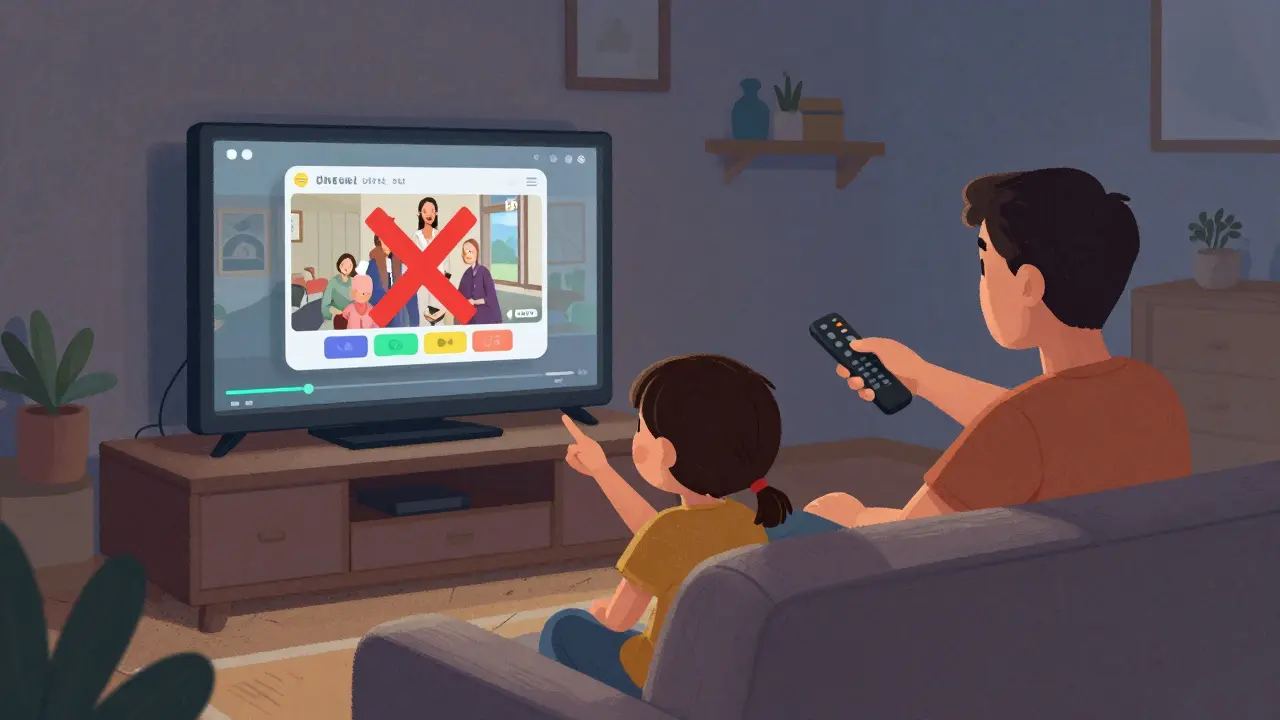
Ever sat down to watch your favorite show on Netflix, only to be bombarded by a trailer for another series-then another, and another-before you even get to press play? You’re not alone. Netflix’s autoplay previews are designed to keep you scrolling, but they’re also annoying, distracting, and sometimes downright embarrassing when you’re watching with family or guests. The good news? You can turn them off. Here’s how to stop Netflix autoplay previews on your TV and mobile device, so you control what you see-and when.
Why Netflix Autoplay Previews Are a Problem
Netflix started autoplaying previews as a way to boost engagement. The idea is simple: show you a 15-second clip of something similar to what you’re watching, and hope you get hooked. But for many users, it backfires. These previews play automatically with sound, even when your TV is muted. They interrupt your viewing flow. They’re loud. They’re unpredictable. And worst of all, they often feature content you’re not interested in-sometimes even content your kids shouldn’t see.It’s not just about annoyance. In households with young children, autoplay previews can expose them to inappropriate scenes. In shared living spaces, they can be socially awkward. And if you’re trying to wind down after a long day, the constant barrage of trailers makes it harder to relax.
How to Turn Off Autoplay Previews on Smart TVs
Stopping autoplay previews on your TV is straightforward, but the steps vary slightly depending on your TV brand. The process is the same for Samsung, LG, Sony, TCL, and other smart TVs that run the Netflix app.- Open the Netflix app on your TV.
- Use your remote to navigate to the profile icon in the top-right corner.
- Select Account.
- Scroll down and choose Playback settings.
- Find the option labeled Autoplay next episode and toggle it off.
- Below that, find Autoplay previews and toggle that off too.
- Exit the menu. Changes save automatically.
That’s it. Once disabled, Netflix will no longer play trailers before you start a show or movie. You’ll see the title card and description, but no video will start unless you press play.
How to Disable Autoplay Previews on Android and iOS
The mobile app works the same way-just with a different layout. Here’s how to turn off autoplay previews on your phone or tablet:- Open the Netflix app on your Android or iOS device.
- Tap your profile icon in the top-right corner.
- Select Account.
- Scroll down to Playback settings and tap it.
- Toggle off Autoplay next episode if it’s on.
- Toggle off Autoplay previews.
- Close the app. Settings are saved instantly.
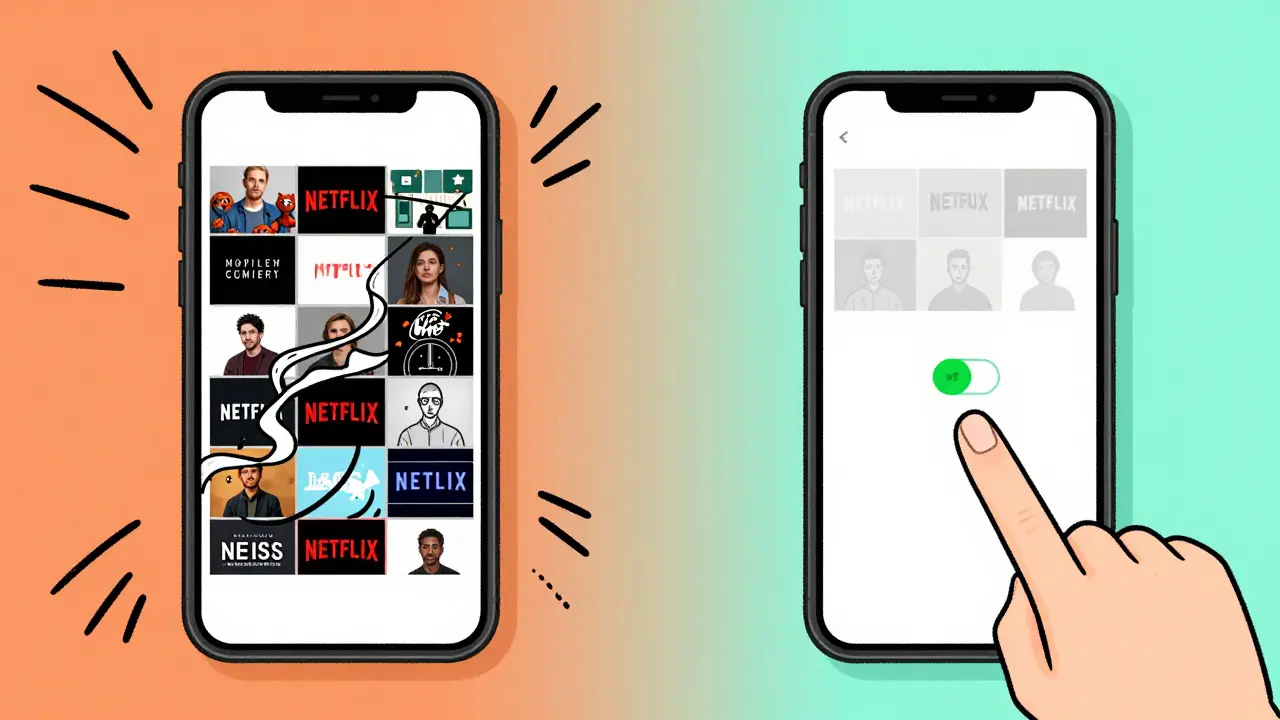
On iOS, you might need to scroll a bit further down to see the playback options. On Android, the layout is slightly more compact, but the options are in the same place. Once you turn off autoplay previews, your home screen will display static thumbnails instead of moving clips.
What Happens When You Turn Off Autoplay Previews?
Turning off autoplay previews doesn’t change your recommendations. You’ll still see the same shows and movies suggested to you. The only difference is that instead of seeing a 15-second video clip that plays automatically, you’ll see a still image with the title and brief description.This makes browsing quieter and more intentional. You can take your time deciding what to watch without being pulled into a trailer you didn’t ask for. It also reduces data usage slightly-especially helpful if you’re on a limited mobile plan.
Some users worry that turning off autoplay previews will make Netflix less personalized. It won’t. The algorithm still tracks what you watch and what you skip. It just won’t force you to watch a preview before you get there.
Why You Might Still See Previews After Turning Them Off
If you’ve turned off autoplay previews but still see them playing, there are a few reasons why:- You changed settings on one profile but not another. Netflix lets each profile have its own playback settings. Make sure you’re logged into the right profile.
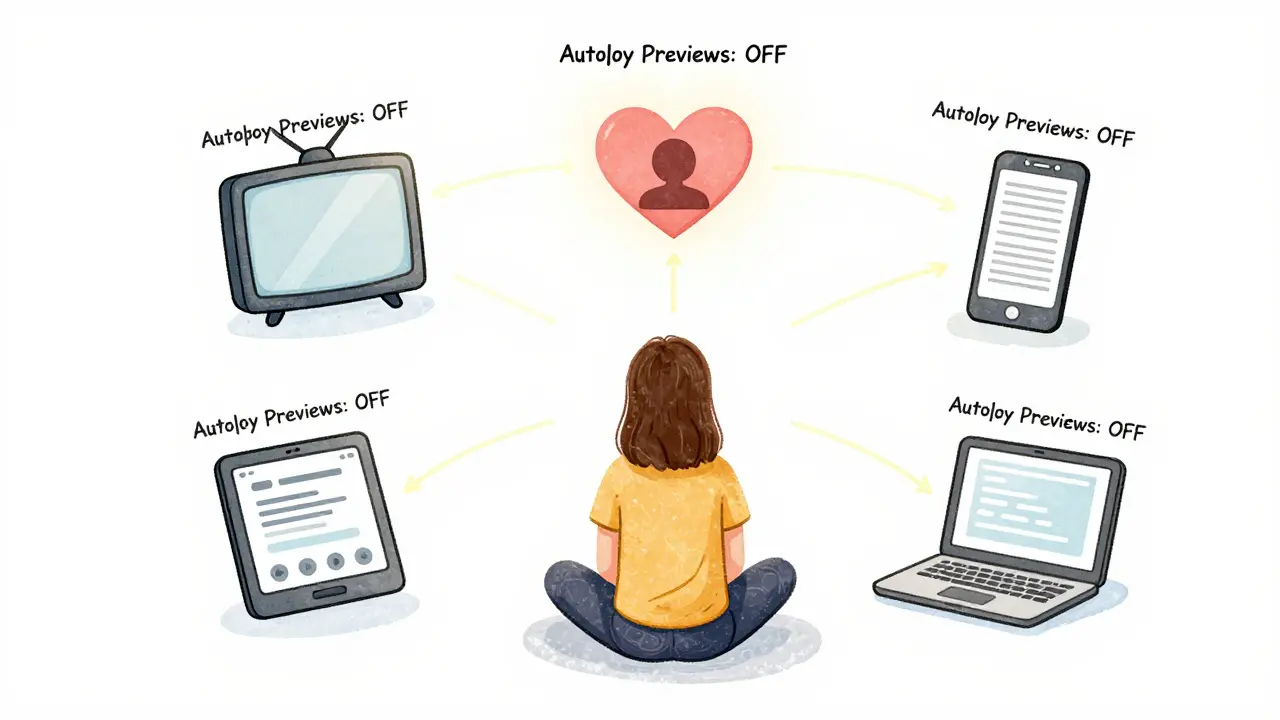
- You’re using a different device. Settings don’t sync across devices automatically. You need to turn off autoplay previews on each TV, tablet, or phone you use.
- You’re watching on a web browser. The desktop version of Netflix (on Chrome, Safari, or Edge) has its own playback settings. Go to netflix.com/account, scroll to Playback settings, and toggle off autoplay previews there too.
- There’s a delay. Sometimes, changes take up to 10 minutes to fully apply. Restart the app or device if it still isn’t working.
Pro tip: If you have multiple profiles in your household (kids, partner, guests), make sure you turn off autoplay previews for each one. Otherwise, someone else’s settings might override yours.
Other Netflix Settings You Should Check
While you’re in the Playback settings menu, here are a few other options worth adjusting:- Autoplay next episode: If you hate being forced into the next episode of a show, turn this off too. You’ll get a pause screen instead.
- Video quality: Set it to "Save Data" if you’re on mobile and want to reduce streaming usage.
- Subtitle appearance: Customize font size and color if you find the default hard to read.
These settings are profile-specific, so you can customize them for each user. For example, you might set your profile to "High" quality and your kid’s profile to "Save Data" to avoid data overages.
Is There a Way to Disable Previews Globally?
No. Netflix doesn’t offer a global setting that applies to all profiles at once. You have to adjust autoplay previews for each individual profile. That’s inconvenient, but it gives families more control. If you’re the main account holder, go through each profile and turn it off one by one. It takes less than five minutes.There’s no workaround using third-party apps or browser extensions. Netflix doesn’t allow external tools to override its interface. The only reliable way is through the official settings.
Final Thoughts: Take Back Control of Your Viewing
Netflix’s autoplay previews are a feature designed for engagement-not comfort. They work great for Netflix’s business model, but not always for your experience. Turning them off doesn’t reduce your access to content. It just gives you back your attention.Once you disable autoplay previews, you’ll notice how much calmer your viewing experience becomes. No more accidental exposure to violent scenes. No more loud trailers interrupting your quiet evening. No more wondering why your phone is draining so fast.
It’s a small change. But in a world full of noise, sometimes the most powerful thing you can do is hit pause-on the previews, and on the distractions they bring.
Why does Netflix autoplay previews even when my TV is muted?
Netflix autoplay previews are designed to play with sound by default, even if your TV is muted. The app doesn’t detect your mute status-it plays the preview as a standalone video clip. The only way to stop this is to turn off autoplay previews in your account settings.
Can I turn off autoplay previews for my kids’ profile only?
Yes. Each profile has its own playback settings. Go to your Netflix account, select the child’s profile, then turn off autoplay previews. This keeps adult content trailers from playing while your kids are browsing. It’s a good safety step for families.
Do autoplay previews use more data?
Yes. Each preview is a short video stream, usually 15-30 seconds long, and plays at the same quality as your main streaming setting. If you’re on a limited data plan, turning off autoplay previews can save several hundred MB per day, especially if you browse heavily.
Why can’t I find the autoplay previews option on my TV?
Some older TV models or outdated Netflix apps don’t show the autoplay previews toggle. Make sure your TV’s Netflix app is updated. If it still doesn’t appear, try accessing the settings through the Netflix website on a computer-those changes will sync to your TV.
Will turning off autoplay previews affect my recommendations?
No. Your recommendations are based on what you watch, skip, and rate-not on whether previews autoplay. Turning off previews only changes how content is displayed, not how Netflix suggests it to you.