
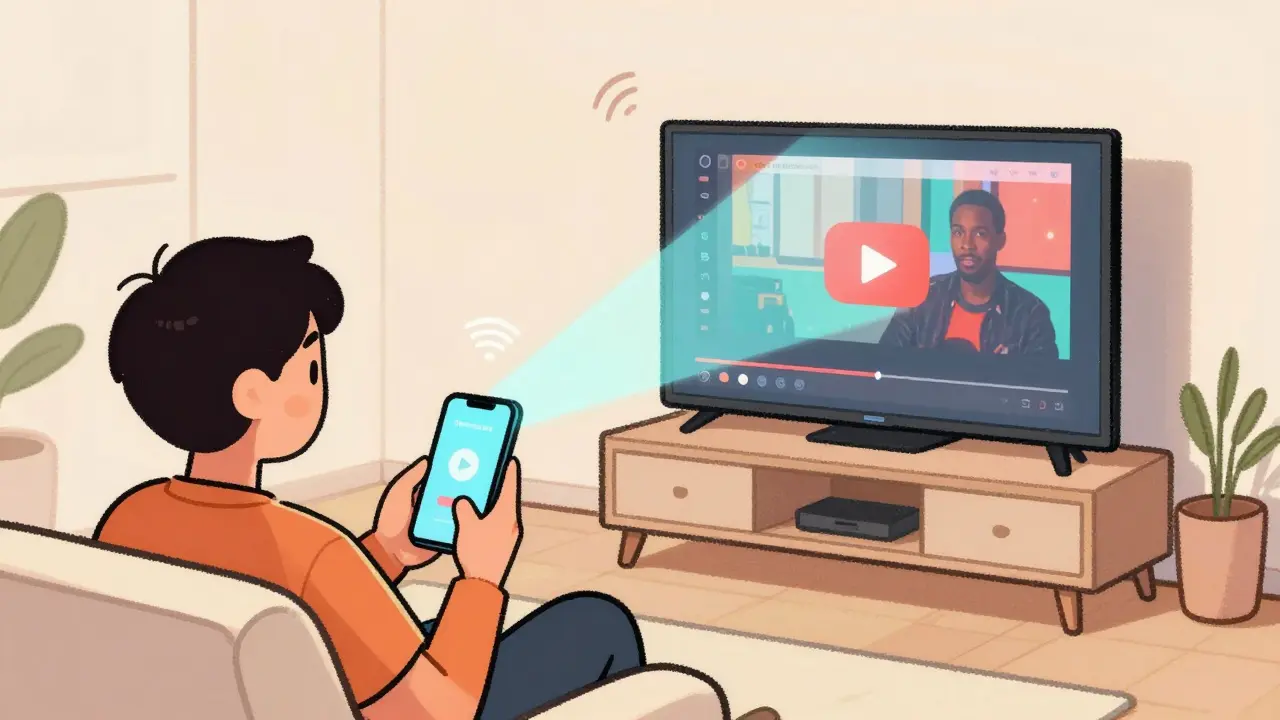
Ever sat on your couch, scrolling through your phone, and wished you could just toss that video onto the big screen without fumbling with cables? You’re not alone. Casting and screen mirroring let you turn your phone into a remote control for your TV-no wires, no hassle. But if you’ve tried it before and got stuck on a black screen or a spinning wheel, you know it’s not always as simple as it sounds. This guide cuts through the confusion and shows you exactly how to get your phone’s content playing on your TV, whether you’re using an Android, iPhone, or a smart TV from Samsung, LG, or Sony.
What’s the Difference Between Casting and Screen Mirroring?
People use these terms interchangeably, but they’re not the same. Casting sends a specific app’s content-like YouTube or Netflix-to your TV. Your phone becomes a remote. You can lock it, walk away, and the video keeps playing. Screen mirroring, on the other hand, copies everything on your phone’s screen in real time. If you open a browser, show a photo album, or play a game, it all appears on the TV. That’s useful for presentations or sharing live moments, but it drains your battery faster and can lag if your Wi-Fi isn’t strong.
Think of it this way: Casting is like telling your TV, “Play this song from Spotify.” Screen mirroring is like holding your phone up to a mirror and showing the whole screen. One is targeted. The other is total.
How to Cast from Android to TV
Most Android phones have Google’s Cast feature built right in. You don’t need extra apps-just make sure your TV supports Chromecast or has built-in Google Cast.
- Connect your phone and TV to the same Wi-Fi network. This is the most common reason casting fails-different networks, no connection.
- Open the app you want to cast-YouTube, Disney+, Hulu, or even Spotify. Look for the Cast icon (it looks like a rectangle with a Wi-Fi signal in the corner). It’s usually near the play button.
- Tap the Cast icon. A list of nearby devices appears. Select your TV.
- Once connected, the video starts playing on the TV. Your phone can go to sleep or be used for other things.
If you don’t see the Cast icon in your app, your TV might not support it. Try going to your phone’s Settings > Connected devices > Connection preferences > Cast. From here, you can cast your entire screen, even if the app doesn’t have a Cast button.
How to Mirror or Cast from iPhone to TV
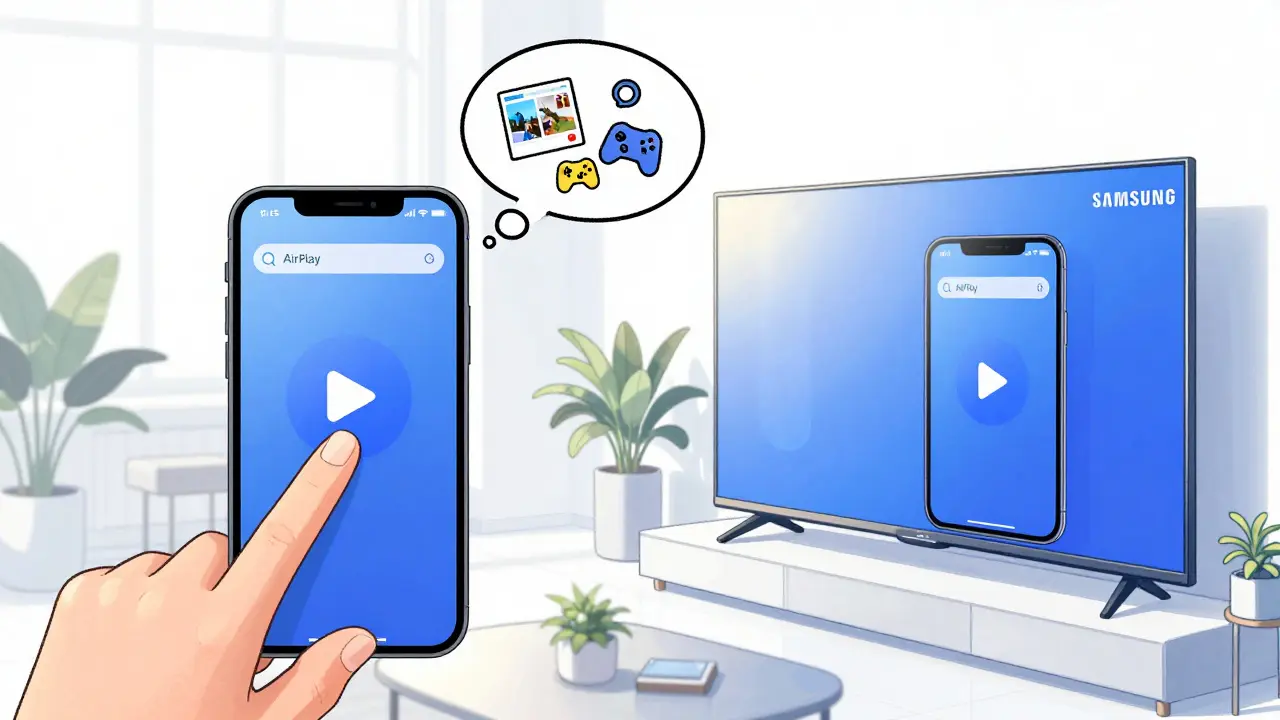
iPhones use Apple’s AirPlay, which works with Apple TV, newer Samsung and LG TVs, and some Roku models. If you have an older TV, you’ll need an Apple TV box or an AirPlay-compatible dongle.
- Make sure your iPhone and TV are on the same Wi-Fi network.
- Swipe down from the top-right corner (or up from the bottom on older models) to open Control Center.
- Tap the Screen Mirroring or AirPlay icon-it looks like a rectangle with a triangle at the bottom.
- Select your TV from the list. If you want to mirror your screen, leave it on “Screen Mirroring.” If you’re playing video from Apple TV+, YouTube, or Netflix, you can tap the Cast icon inside the app instead.
- Once connected, your screen appears on the TV. You’ll see a small white bar at the top of your phone saying “Mirroring” or “AirPlaying.”
Pro tip: If AirPlay doesn’t show up, restart your router. Sometimes the network just needs a reset to refresh device discovery.
What TVs Support Casting and Screen Mirroring?
You don’t need a fancy TV to make this work. Here’s what works in 2026:
| Brand | Cast Support | AirPlay Support | Notes |
|---|---|---|---|
| Samsung | Yes (via Google Cast) | Yes (2018 models and newer) | Use SmartThings app to manage connections |
| LG | Yes (via Google Cast) | Yes (2019 models and newer) | Requires webOS 4.5 or later |
| Sony | Yes (most 2020+ models) | Yes (2021+ models) | Enable “Screen Mirroring” in Settings > Network |
| Google Chromecast | Yes (built-in) | No | Plug into HDMI; works with any phone |
| Apple TV | No | Yes (only) | Best for iPhone users; supports 4K and Dolby Vision |
| Amazon Fire TV | Yes (via Alexa app) | No | Use “Cast to Fire TV” feature in Android settings |
If your TV doesn’t support either, a $35 Chromecast or an Apple TV (from $99) fixes it instantly. No need to buy a whole new TV.
Why Isn’t It Working? Common Fixes
Here are the top five reasons casting or mirroring fails-and how to fix them:
- Device not showing up: Restart your phone, TV, and router. Sometimes devices just stop broadcasting their presence.
- Connection drops mid-stream: Move closer to your router. Wi-Fi interference from microwaves, baby monitors, or thick walls can break the signal.
- Audio plays but no video: This usually means the app doesn’t support casting. Try a different app, like YouTube instead of a niche streaming service.
- Screen mirroring is laggy: Switch to 5GHz Wi-Fi if your router supports it. 2.4GHz is slower and more crowded.
- iPhone won’t connect to Samsung TV: Make sure AirPlay is enabled on the TV. Go to Settings > General > AirPlay & HomeKit and toggle it on.
Also, check for updates. Android and iOS push out casting fixes regularly. A simple system update can solve problems that seemed impossible.
Best Practices for Smooth Streaming
Want to avoid frustration? Follow these simple rules:
- Use 5GHz Wi-Fi for screen mirroring-it’s faster and less crowded.
- Close background apps on your phone. They hog bandwidth and cause buffering.
- Don’t cast while downloading large files or video calling. Your network can’t handle multiple heavy tasks.
- For parties or gatherings, use casting over mirroring. It’s more reliable and lets you use your phone normally.
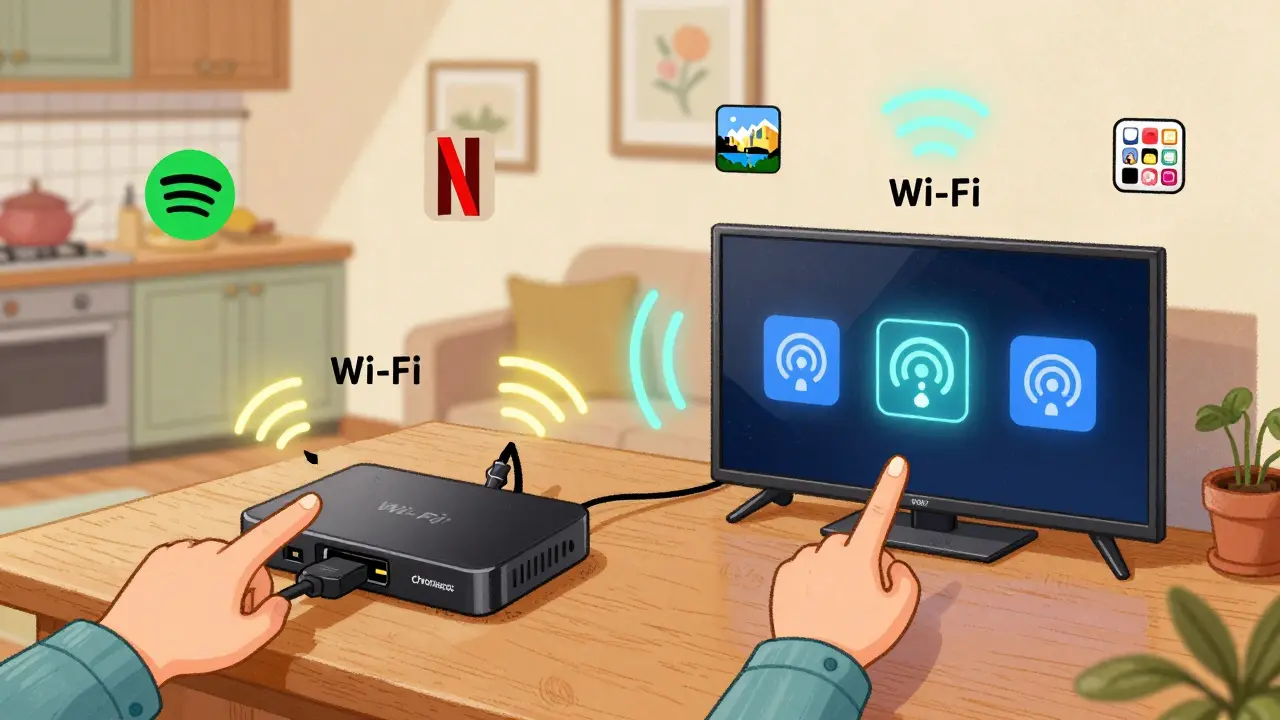
- If you’re using a Chromecast, plug it directly into the TV’s HDMI port. Avoid HDMI extenders or switches-they cause signal loss.
And if you’re watching movies with friends, turn off notifications on your phone. Nothing kills the vibe like a text alert popping up on your TV screen.
What About Older TVs Without Smart Features?
If you’ve got a TV from 2015 or earlier, don’t panic. You don’t need to replace it. Just get a Chromecast or an Amazon Fire TV Stick. Plug it into the HDMI port, connect it to Wi-Fi using your phone, and boom-you’ve got smart TV features for under $40. These devices work with both Android and iPhone, and they’re easier to set up than most people expect.
Some people still use HDMI cables for reliability. And that’s fine-if you’re watching a movie and want zero lag, a wired connection is still the gold standard. But for everyday use, wireless is faster, cleaner, and way more convenient.
Next Steps: What to Try After You Get It Working
Once you’ve got casting or mirroring working, here’s what to explore:
- Use your phone as a remote for your TV’s native apps. No need to fumble with the TV remote.
- Cast photos from your gallery to show vacation memories on the big screen.
- Use screen mirroring to play mobile games on your TV-bigger screen, better experience.
- Set up a daily playlist on Spotify and cast it to your TV in the kitchen while you make coffee.
- Try casting from a tablet to a second TV in another room. Great for families.
Most people stop at just playing YouTube. But once you unlock this feature, you’ll find yourself using it for everything-from showing your kid’s school project to watching live sports with friends.
Can I cast from my phone to any TV?
No, not every TV supports casting. You need a smart TV with built-in Chromecast or AirPlay, or you can add a Chromecast or Apple TV device to any TV with an HDMI port. Older non-smart TVs won’t work without an external adapter.
Does casting use my phone’s data plan?
No. Once you’re connected to Wi-Fi, the video streams directly from the internet to your TV. Your phone only sends a command to start playback. Even screen mirroring uses your Wi-Fi, not mobile data.
Why does my screen mirroring lag?
Lag usually comes from a weak or crowded Wi-Fi signal. Switch to a 5GHz network if possible, move closer to your router, or reduce other devices using bandwidth. Older phones or TVs may also struggle with mirroring due to hardware limits.
Can I cast to multiple TVs at once?
Not natively. Most apps and systems only allow one output at a time. Some third-party apps claim to do this, but they’re unreliable and often break with updates. For multi-room audio, use Spotify’s multi-device feature instead.
Do I need to pay for casting or screen mirroring?
No. Casting and screen mirroring are free features built into Android, iOS, and most modern smart TVs. You only pay if you buy a Chromecast, Apple TV, or similar device to add the feature to an older TV.