
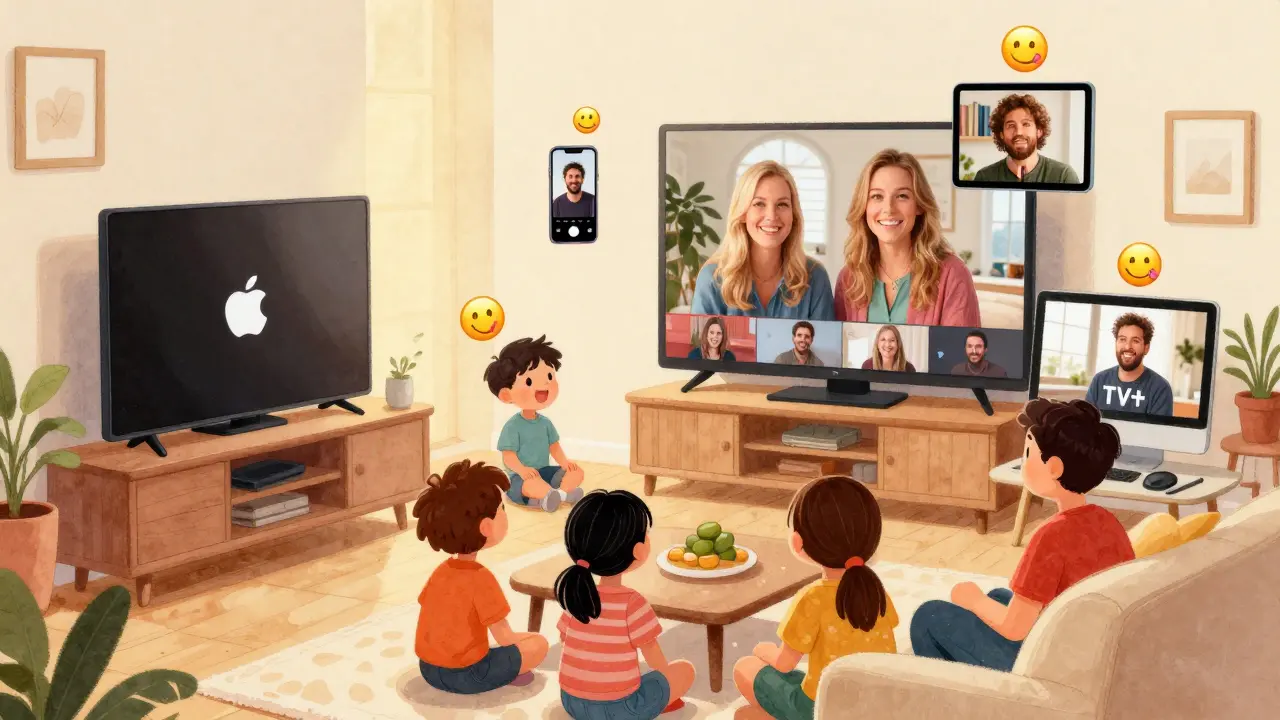
Ever sat down to watch a new episode of Apple TV+ and wished you could share the moment with someone miles away? You’re not alone. With SharePlay, you don’t need to be in the same room to laugh, gasp, or binge together. It turns FaceTime into a virtual movie night - no extra apps, no sync issues, just real-time watching with friends and family.
What Is SharePlay on Apple TV+?
SharePlay is Apple’s built-in feature that lets you watch videos, listen to music, or even share your screen during a FaceTime call. When you’re on a FaceTime call and someone starts playing something from Apple TV+, everyone on the call can watch it together - in perfect sync. The controls (play, pause, rewind) work for everyone. Volume adjusts together. Even subtitles stay in sync.
It works on iPhone, iPad, Mac, and Apple TV. But for the best experience, you need Apple TV+ as the source. That’s because Apple TV+ is deeply integrated with SharePlay. Other services like Netflix or Hulu don’t support it - not yet, anyway.
How to Start SharePlay on Apple TV+
Here’s how to get started, step by step:
- Start a FaceTime call with the person you want to watch with. You can use audio-only or video - it doesn’t matter.
- Open the Apple TV+ app on your device. Make sure you’re signed in with your Apple ID and have an active subscription.
- Find the show or movie you want to watch. Tap Play.
- Once the video starts, a small SharePlay button will appear at the bottom of the screen. Tap it.
- Choose SharePlay from the menu. Everyone on the FaceTime call will get a notification that you’ve started watching together.
- They tap Join, and boom - you’re all watching the same scene, at the same time.
You can pause, rewind, or fast-forward - and it moves for everyone. If someone skips ahead, the others get a prompt to catch up. No one gets left behind.
What Devices Work With SharePlay on Apple TV+
Not every Apple device supports SharePlay the same way. Here’s what you need:
- iPhone: iPhone 8 or later with iOS 15.1 or newer
- iPad: iPad Pro, iPad Air 3rd gen or later, iPad mini 5th gen or later with iPadOS 15.1+
- Mac: MacBook Air or Pro with Apple Silicon or Intel Core i5+ from 2018, macOS Monterey 12.1 or newer
- Apple TV: Apple TV 4K (2nd gen or later) with tvOS 15.1+
Everyone doesn’t need the same device - you can be on an iPhone while your friend watches on an Apple TV. The system handles the sync automatically.
Requirements to Make It Work
SharePlay isn’t magic - it needs a few things to run smoothly:
- A stable internet connection. At least 10 Mbps upload/download per person for HD. 25 Mbps is better for 4K.
- Everyone needs an Apple ID with an active Apple TV+ subscription. You can’t share a single subscription across multiple households - each person needs their own.
- FaceTime must be enabled on all devices. No third-party video apps work - it has to be Apple’s FaceTime app.
- Screen time or parental controls can block SharePlay. Check Settings > Screen Time > Content & Privacy Restrictions > Allowed Apps to make sure FaceTime and SharePlay aren’t turned off.
Also, if someone’s device is low on battery or overheating, SharePlay might pause or disconnect. It’s not a bug - it’s Apple’s way of protecting performance.

Can You Watch Live Events or New Episodes Together?
Yes. If Apple TV+ drops a new season of Severance or a live concert from Taylor Swift, you can start a FaceTime call and hit Play at the exact same moment. Everyone gets the same timestamp. No more “Wait, what did they just say?” moments.
Even better - you can pause during a commercial break, grab a snack, and resume together. The timer stays locked. No one accidentally skips ahead.
Why SharePlay Beats Other Group Watching Apps
There are third-party apps like Teleparty or Discord screenshare, but they’re clunky. They require browser extensions, don’t support high-res video, and often lag behind the original stream.
SharePlay is native. It’s built into iOS, iPadOS, macOS, and tvOS. It uses Apple’s servers to sync playback with millisecond precision. Audio and video stay perfectly aligned. Subtitles, audio descriptions, and even Dolby Atmos sound work without a hitch.
Plus, you can switch from watching to talking without leaving the call. No need to minimize apps or toggle between screens. Your FaceTime call stays active the whole time.
What You Can’t Do With SharePlay
It’s not perfect. Here are the limits:
- You can’t add more than 32 people to a FaceTime call - so big group watch parties are out.
- Only one person can start the video. Others can join, but they can’t initiate playback.
- Apple TV+ content must be available in your region. If someone’s in a country where the show isn’t licensed, they won’t be able to join.
- Some older Apple TV+ originals might not support SharePlay if they were uploaded before the feature launched in late 2021.
Also, if you’re using a shared Apple ID (like a family plan), SharePlay still requires each person to have their own Apple TV+ login. Sharing a single login across multiple devices won’t work.

Pro Tips for Better SharePlay Experiences
Want to make group watching smoother?
- Use headphones during the call to avoid echo. Even better - mute your mic when the show’s on, then unmute to react.
- Start the call 5 minutes before the show. Use that time to test audio, make sure everyone’s connected, and pick the episode.
- Turn on Do Not Disturb. Notifications can interrupt playback or cause lag.
- If SharePlay drops, restart the FaceTime call and try again. It’s usually a temporary network glitch.
- For long sessions, plug devices into power. Watching for 2 hours on battery drains fast.
And if you’re hosting a holiday watch party? Send out a calendar invite with the time, show, and a reminder to update iOS/tvOS. That one step cuts down 80% of the troubleshooting later.
Is SharePlay Worth It?
If you already pay for Apple TV+ and use FaceTime regularly, then yes - it’s one of the most underrated features Apple has made. It turns passive streaming into a shared experience. You’re not just watching a show. You’re sharing reactions, inside jokes, and memories - even if you’re on opposite sides of the world.
It’s especially great for long-distance families, college roommates, or friends who can’t meet up. No more saying, “I’ll tell you what happened.” Now you can show them.
Frequently Asked Questions
Do I need an Apple TV+ subscription to use SharePlay?
Yes. Everyone joining a SharePlay session needs their own Apple TV+ subscription. You can’t watch together if someone doesn’t have access to the content. Apple doesn’t allow sharing a single account across multiple households for this feature.
Can I use SharePlay with non-Apple devices like Android or Windows?
No. SharePlay only works between Apple devices running iOS 15.1+, iPadOS 15.1+, macOS Monterey 12.1+, or tvOS 15.1+. Android, Windows, and Chromebook users can’t join a SharePlay session, even if they’re on FaceTime via a browser.
Why does SharePlay sometimes stop working mid-show?
Most often, it’s a network issue. If someone’s Wi-Fi drops, their device runs out of battery, or there’s a server hiccup, SharePlay disconnects. Try restarting the FaceTime call and starting the video again. Make sure all devices are updated to the latest software.
Can I watch live sports on Apple TV+ with SharePlay?
Yes, if the sport is part of Apple TV+’s live offerings - like Friday Night Baseball or MLS matches. You can start a FaceTime call and watch live together. Everyone stays synced, even during replays or instant reviews.
Does SharePlay work with subtitles and audio descriptions?
Yes. If you turn on subtitles or audio descriptions in the Apple TV+ app, they’ll appear for everyone in the SharePlay session. You can’t change settings individually - it’s a shared experience. The person who started the video controls the accessibility options.
Next Steps
Try it this weekend. Pick a show you’ve been meaning to watch - maybe The Morning Show or For All Mankind - and invite a friend or family member over FaceTime. Start the call, open Apple TV+, and hit Play. You’ll be surprised how natural it feels.
If it doesn’t work right away, check your software updates. Make sure everyone’s on iOS 15.1 or newer. And if you’re still stuck, restart your device. Nine times out of ten, that fixes it.
SharePlay isn’t just a feature. It’s a way to bring people closer - one episode at a time.