
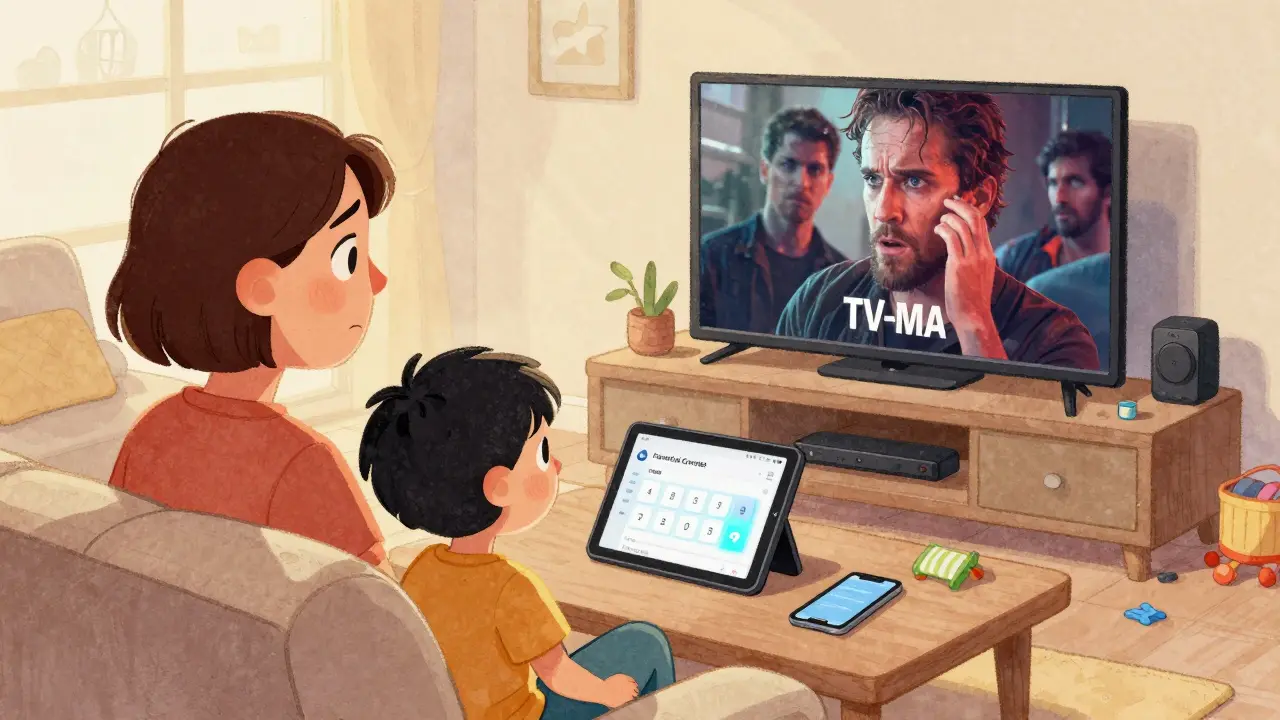
Ever sat down to watch a movie on Prime Video only to find your kid suddenly watching something way too mature? Or worse-discovering a $50 charge for a movie you didn’t buy? Prime Video makes it easy to stream thousands of titles, but without the right settings, it can turn into a free-for-all. The good news? You can lock it down. With PINs, age ratings, and purchase locks, you can keep content appropriate and spending under control. No apps, no extra hardware-just settings inside your account.
Set a PIN to Block Mature Content
The first step to locking down Prime Video is setting a PIN. This isn’t just a password-it’s a gatekeeper for anything rated R, TV-MA, or above. When you turn it on, anyone trying to play those shows or movies will need to enter the PIN before the video starts.
To set it up, go to Prime Video on your web browser or app. Click your profile icon in the top right, then choose Parental Controls. Select Create PIN and enter a 4-digit number you’ll remember. Avoid obvious ones like 1234 or your birth year. Once saved, you’ll see a toggle for Require PIN to watch mature content. Turn it on.
Now, if someone tries to play Breaking Bad, The Boys, or any other mature title, they’ll hit a wall. No PIN, no playback. This works on Fire TV, smartphones, tablets, and web browsers. It’s consistent across all devices linked to your account.
Choose the Right Age Rating Filter
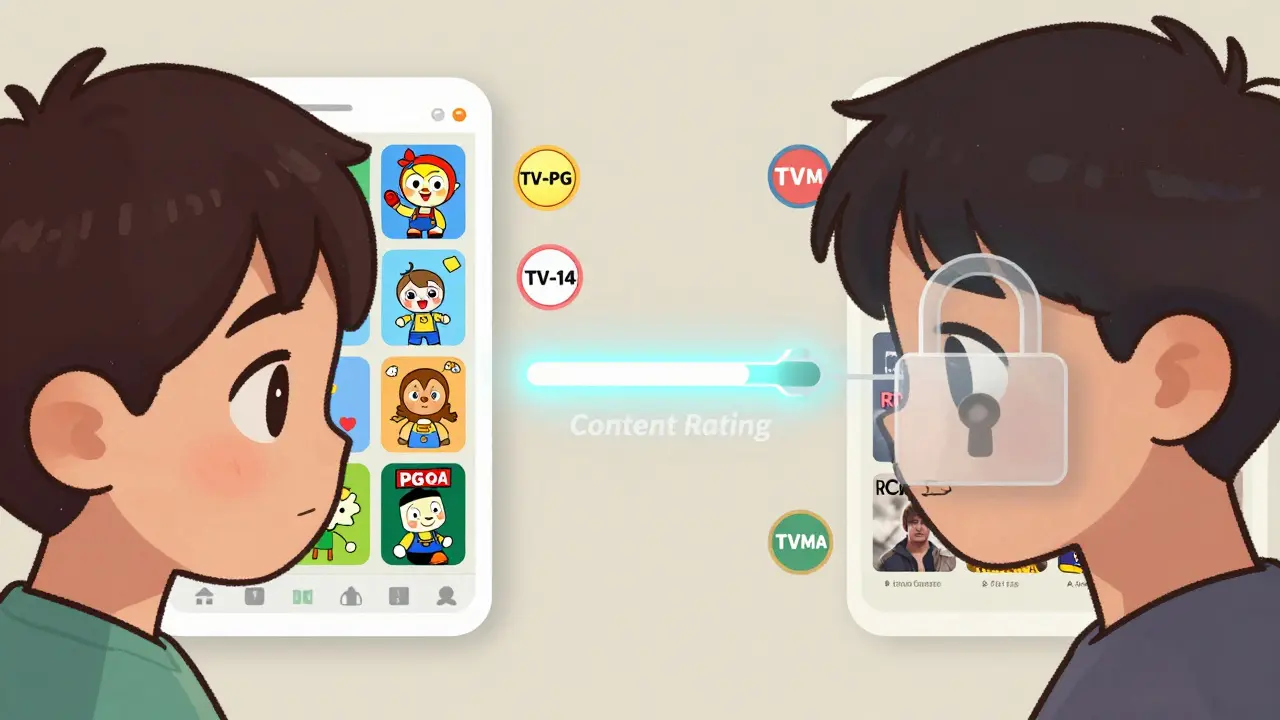
A PIN is great for blocking specific content, but what if you want to lock out entire categories? That’s where age rating filters come in. Instead of manually blocking each title, you can set a blanket rule: Only show content rated for ages 13 and up, or Only allow TV-PG and below.
In the same Parental Controls menu, look for Content Rating. You’ll see a slider or dropdown with options like:
- Allow all content
- TV-Y, TV-Y7, TV-G, G
- TV-PG, PG, PG-13
- TV-14, R
- TV-MA, NC-17
Select the highest rating you’re comfortable with. Say you pick TV-PG. That means anything rated TV-14 or higher will disappear from search results, recommendations, and even your watchlist. Your kids won’t even see the option to play it. This works for both shows and movies, and it applies to all devices.
Pro tip: If your child has their own profile, you can set a different age filter for them. That way, your 10-year-old gets a stricter limit than your 16-year-old. Profiles are separate, so controls stay personal.
Lock Purchases and Rentals
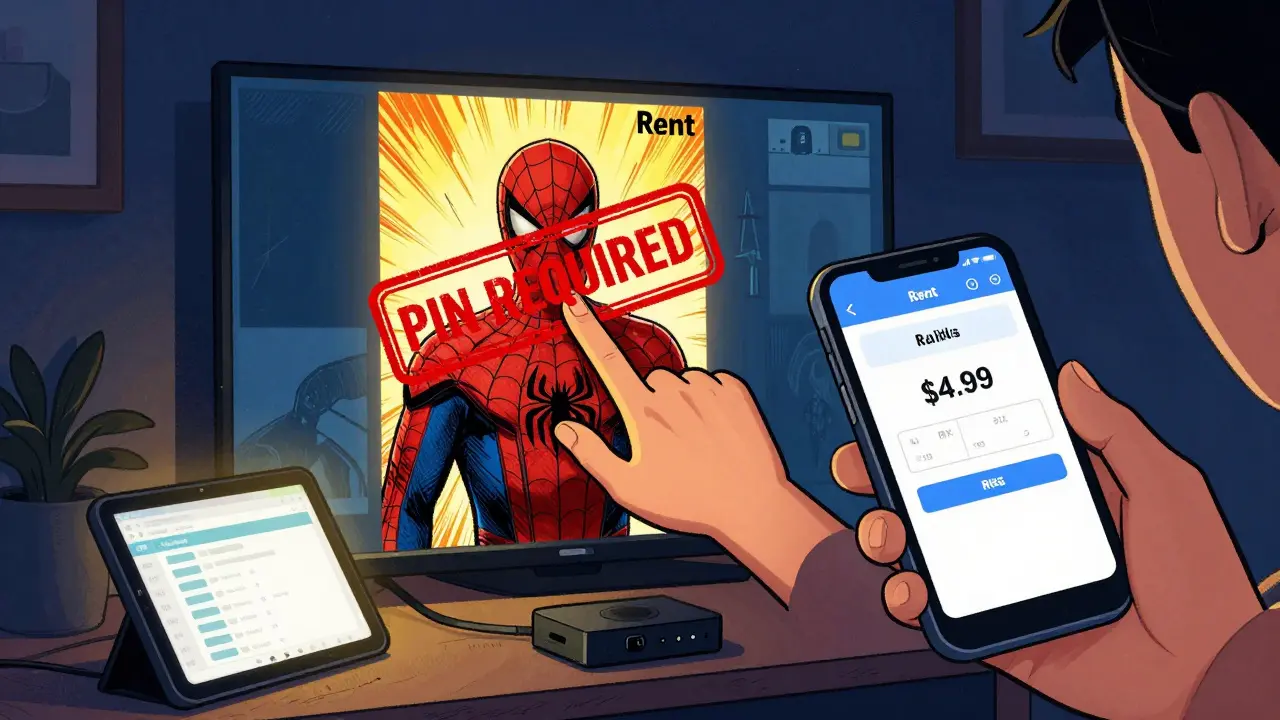
One of the most common surprises on Prime Video? Unexpected charges. A kid taps “Rent” on a new movie, and suddenly your credit card gets hit with $4.99. It’s not a glitch-it’s how the system works by default. But you can shut it down.
Back in Parental Controls, find the option labeled Require PIN to purchase or rent. Turn it on. Now, every time someone tries to rent a movie, buy an episode, or subscribe to a channel like Paramount+ through Prime Video, they’ll need to enter your PIN.
This doesn’t affect your Prime membership or included titles. Only pay-per-view content gets locked. So if your kid wants to watch the new Spider-Man movie that’s not part of Prime, they’re stuck unless you approve it.
It’s a simple fix, but it’s the one most parents miss. And it’s the reason why some families end up with surprise charges every month.
Use Profiles to Separate Household Members
Prime Video lets you create up to six profiles per account. Each one can have its own watch history, recommendations, and-crucially-its own parental controls.
Set up a profile for each child. Name them clearly: “Emma (Age 8)” or “Liam (Age 13)”. Then go into each profile’s settings and adjust the age rating and PIN separately. That way, your 6-year-old gets only cartoons and G-rated films, while your teen gets access to PG-13 content without needing to ask.
Adult profiles don’t need controls unless you want them. But if you’re sharing your account with a partner, you might still want to lock purchases on their profile to avoid accidental rentals. It’s not about suspicion-it’s about control.
Profiles also keep recommendations clean. If your kid watches a lot of animated films, their homepage won’t be flooded with horror or crime dramas. That’s a big deal for younger users who don’t know how to filter.
What You Can’t Control (And What to Do About It)
Prime Video’s parental controls are strong, but they’re not perfect. Here’s what they don’t do-and how to work around it.
- No time limits: You can’t set how long someone can watch. If you need screen time limits, use your device’s built-in tools-like Screen Time on iOS or Digital Wellbeing on Android.
- No content blocking on other apps: If your kid uses a Fire tablet and downloads YouTube Kids, Prime Video’s controls won’t touch that. You need to manage each app separately.
- No alerts for purchases: You won’t get a text or email when someone rents something. You’ll only see it on your billing statement. That’s why the PIN lock is non-negotiable.
If you’re worried about bypassing, don’t rely on PINs alone. Make sure your PIN isn’t written on the fridge or saved in a phone note. Use a unique number, and change it every few months. And never share it with kids-even if they promise they won’t use it.
Test Your Settings
Once you’ve set everything up, test it. Have someone else try to play a mature movie or rent a film. See if the PIN pops up. Check if the age filter hides the titles you expect. Open the app on a different device to make sure it syncs.
It’s easy to think you’ve done it right-until you see your 9-year-old watching Stranger Things at 10 p.m. A quick test saves you from that moment.
Also, check your billing history every month. If you see a rental you didn’t authorize, go back to Parental Controls and double-check that purchase lock is on. Sometimes, settings reset after app updates.
Keep It Updated
Prime Video updates its interface every few months. What was under Parental Controls last year might now be under Account Settings or Profile Settings. If you can’t find the menu, search for “parental controls” in the help section.
Also, if you add a new device-like a smart TV or a Fire Stick-go back and recheck the settings. Controls don’t always carry over automatically. You might need to log in and turn them on again.
And if your child grows older, adjust the age rating. What worked at age 8 might be too strict at 12. Parental controls aren’t set-and-forget. They’re meant to evolve with your family.
Can I block specific shows or movies on Prime Video?
No, Prime Video doesn’t let you block individual titles. Instead, you control content by age rating or by requiring a PIN to watch mature content. If you want to block a specific show like The Umbrella Academy, set your age rating to TV-PG or lower. That will hide all TV-14 and above titles.
Does the PIN work on all devices?
Yes. Once you set a PIN in your Prime Video account, it applies to every device linked to your profile-Fire TV, smartphones, tablets, web browsers, and even smart TVs with the Prime Video app. The PIN syncs across all platforms.
Can my child turn off parental controls?
No. Only the account holder can change parental control settings. Even if your child has their own profile, they can’t disable the PIN or age filter unless they know your Amazon account password. Make sure your password is secure and not shared.
What if I forget my PIN?
If you forget your PIN, go to Prime Video > Parental Controls > Reset PIN. You’ll need to sign in with your Amazon account password. After that, you can set a new one. There’s no way to recover the old PIN-it’s designed to be unguessable.
Do parental controls affect Prime Video Channels?
Yes. If you subscribe to a channel like HBO Max or Showtime through Prime Video, the same age rating and PIN rules apply. If your filter is set to TV-PG, you won’t see any content from those channels rated higher than that. Purchase locks also apply to channel subscriptions.
Final Tip: Make It a Family Habit
Parental controls aren’t just about blocking content-they’re about setting expectations. Talk to your kids about why you’re using them. Explain that some shows are for grown-ups, not because they’re bad, but because they’re meant for older viewers.
When kids understand the reason, they’re less likely to try to bypass the system. And when they know they can ask you for permission to watch something mature, they’ll come to you instead of sneaking around.
Prime Video gives you the tools. You just need to use them-and keep them updated as your family grows.