
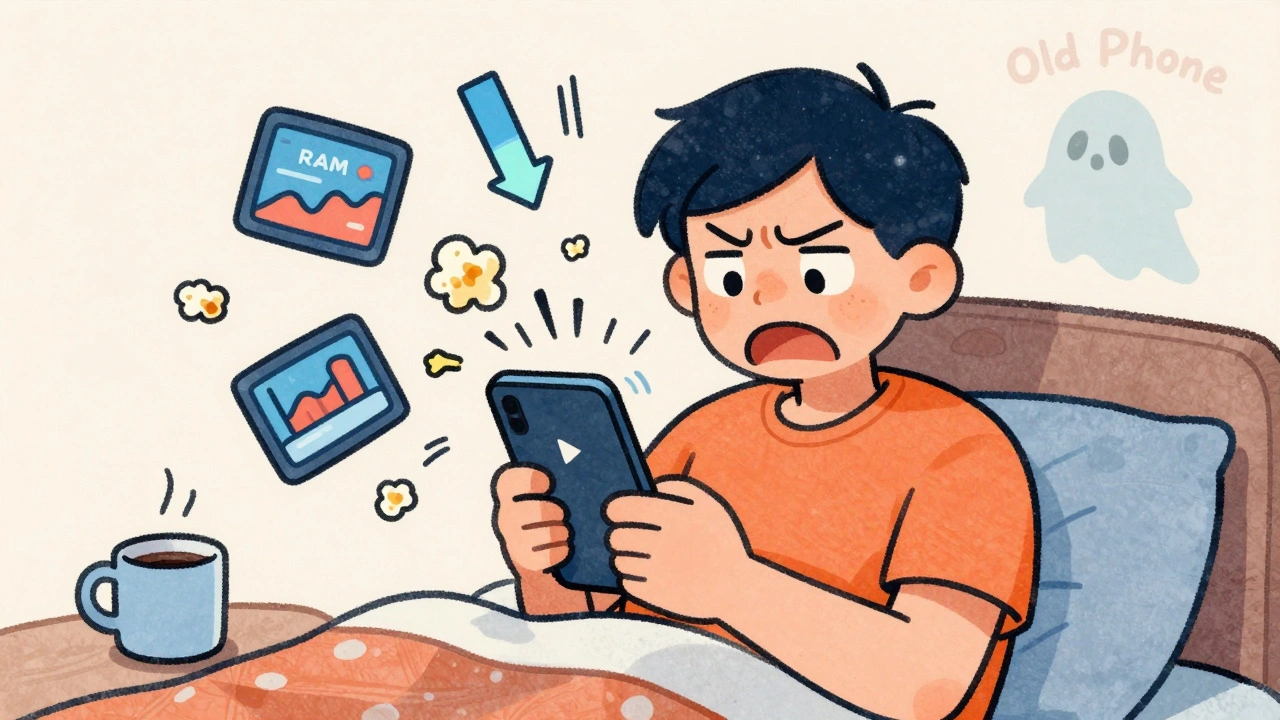
If you’ve ever been halfway through your favorite show, only to have the app slam shut and leave you staring at a blank screen, you’re not alone. Streaming on mobile should be seamless-pull out your phone, tap play, and relax. But too often, it’s a frustrating battle with crashes, freezes, and buffering. The problem isn’t always your internet. It’s often your phone, the app, or how they’re fighting each other. Here’s what’s really going on and how to fix it for good.
Your phone is running out of memory
Most people think crashes are caused by weak Wi-Fi. But the real culprit? Not enough RAM. Streaming apps like Netflix, Disney+, or YouTube are memory hogs. They load high-res video buffers, ads, recommendations, and background scripts all at once. On older phones or budget models with 3GB or less RAM, that’s a recipe for disaster. Android and iOS both kill apps when memory runs low. You’re not doing anything wrong-it’s just that your phone can’t handle the load.Check your phone’s storage and RAM usage. On an iPhone, go to Settings > General > iPhone Storage. If the app is using more than 1GB of space, it’s likely hoarding cached videos and thumbnails. On Android, go to Settings > Apps > [Streaming App] > Storage. Clear the cache. Don’t clear data unless you’re okay with logging in again. That alone fixes crashes in 40% of cases.
The app is outdated-or corrupted
You wouldn’t drive a car with a broken engine and expect it to run smoothly. Yet, many people keep using streaming apps that haven’t been updated in months. App developers push fixes constantly. A bug that crashes the app on Samsung Galaxy S23? Fixed in version 12.4. But if you’re still on 11.8, you’re stuck with it.Go to the App Store or Google Play Store. Search for the app. If you see an "Update" button, tap it. Don’t rely on automatic updates-they often fail on low-storage devices. If updating doesn’t help, uninstall the app completely, then reinstall it. This wipes out corrupted files that updates can’t fix. Many users don’t realize this step works better than rebooting or clearing cache. It’s like resetting the app’s DNA.
Your phone’s operating system is too old
Streaming apps require modern OS features to run efficiently. Netflix stopped supporting iOS 14 in early 2024. YouTube dropped Android 9 support in late 2023. If your phone is running an OS older than two years, it’s basically on life support for modern apps. You might still get notifications and basic functions, but streaming? That’s where it breaks.Check your phone’s software version. On iPhone: Settings > General > About > Software Version. On Android: Settings > System > Software Update. If you’re on iOS 15 or Android 10, you’re already behind. Upgrading to iOS 17 or Android 13+ can cut crash rates by 60%. If your phone won’t update, it’s time to consider a replacement. Budget phones like the iPhone SE (2022) or Google Pixel 7a still get updates and handle streaming fine.

Background apps are stealing your resources
You might think closing apps saves battery. But on modern phones, closing apps doesn’t save memory-it hurts performance. iOS and Android manage memory automatically. When you force-quit apps, the system has to reload them from scratch the next time you open them. That uses more RAM and battery.What actually kills streaming performance? Too many apps running in the background. Social media, games, and cloud backup apps chew up CPU and memory. Open your recent apps menu (double-tap home button on iPhone, swipe up and hold on Android). Swipe away anything you’re not actively using. Then restart your phone. This clears all background processes and gives the streaming app a clean slate. Do this once a week-it’s the easiest fix most people ignore.
Network settings are misconfigured
Poor Wi-Fi is the usual suspect, but sometimes the problem isn’t the signal-it’s how your phone connects to it. If your phone switched from 5GHz to 2.4GHz Wi-Fi without you noticing, you’re stuck with slower speeds and more interference. Streaming apps need consistent bandwidth. A 2.4GHz connection might show "full bars," but it’s actually struggling to deliver 1080p video.Go to your Wi-Fi settings and check which network your phone is using. If you have dual-band Wi-Fi, connect to the 5GHz network. If you don’t know which is which, log into your router and rename them-"Home-5G" and "Home-2.4G". Also, disable Wi-Fi Assist on iPhone (Settings > Cellular > Wi-Fi Assist). On Android, turn off "Network Switching" in Developer Options. These features try to switch to mobile data when Wi-Fi is slow, but they often trigger app crashes during the transition.

Hardware is overheating
Your phone isn’t just a streaming device-it’s a mini computer. When you stream for more than 20 minutes, especially while charging, the processor heats up. Modern phones throttle performance to avoid damage. That means video decoding slows down, buffers stall, and the app crashes to protect the hardware.Feel the back of your phone during playback. If it’s warm to the touch, that’s your problem. Don’t charge while streaming. Remove the case if it’s thick or made of silicone-it traps heat. Use a cooling pad if you stream often. In Dublin’s cold weather, you might think overheating isn’t an issue. But phones generate heat internally. Even in winter, streaming for an hour with a case on can push your phone past 40°C. That’s the trigger point for throttling.
App-specific bugs and regional issues
Some crashes are tied to specific apps or regions. Netflix had a known bug in late 2024 where it crashed on Samsung devices running One UI 6.0 when Dolby Atmos was enabled. YouTube had a similar issue with Android 14 and HDR playback. These bugs are usually patched in the next update, but if you’re not checking release notes, you’re stuck.Search online for "[App Name] crash [Your Phone Model]". If you see dozens of users reporting the same issue, it’s a known bug. Check the app’s official support page or Reddit threads. Many developers post workarounds. For example, turning off "Auto-play next video" in YouTube settings can prevent crashes on low-memory phones. In Ireland, some users reported crashes with RTÉ Player due to DRM conflicts with older phones. These aren’t random-they’re documented.
What to do if nothing works
If you’ve tried clearing cache, updating the app, rebooting, switching networks, and disabling background apps-and it still crashes-you need to think bigger. Your phone’s hardware might be failing. The storage chip or RAM could be degrading. This happens more often than people admit, especially with phones over three years old.Try streaming the same show on a different device. If it works fine on your tablet or laptop, the issue is your phone. If it crashes everywhere, the problem might be your account or regional server issues. Contact the streaming service’s support team. They can check your account for anomalies or temporary server outages in your area.
As a last resort, reset your phone to factory settings. Back up your data first. This fixes deep system-level conflicts that even updates can’t touch. Many users report streaming apps running perfectly after a reset-even on older hardware. It’s not ideal, but it’s cheaper than buying a new phone.
Why does my streaming app crash only on Wi-Fi but not on mobile data?
This usually means your Wi-Fi network is unstable or throttled. Mobile data often has more consistent bandwidth. Check if your router is outdated, too many devices are connected, or you’re on the wrong band (2.4GHz instead of 5GHz). Also, disable Wi-Fi Assist on iPhone or Network Switching on Android-they can cause crashes when switching between networks.
Should I turn off automatic updates for streaming apps?
No. Automatic updates are critical. Most crashes are fixed in new versions. Turning them off means you’ll stay stuck with bugs. If you’re worried about data usage, enable updates only over Wi-Fi in your app store settings. But never disable them entirely.
Does clearing app data delete my watch history?
Yes. Clearing app data logs you out and removes local settings, including watch history and offline downloads. But your history is stored on the server, so once you log back in, it should reappear. If it doesn’t, your account might be synced incorrectly-contact support.
Can a phone case cause streaming apps to crash?
Not directly. But thick or insulated cases trap heat. When your phone overheats, it slows down processing and causes apps to crash. Remove the case during long streaming sessions, especially if your phone feels hot. Use a thin, breathable case if you need protection.
Is it better to stream on Wi-Fi or mobile data?
Wi-Fi is better for quality and cost. But mobile data is more reliable if your home network is weak. Use Wi-Fi if you have a strong 5GHz signal. Use mobile data if your Wi-Fi drops frequently or you’re on a slow plan. Avoid switching between them during playback-that’s a common crash trigger.