
Parental Controls: How to Manage What Your Kids Watch Online
When you set up parental controls, software or settings that limit what children can access on devices and streaming services. Also known as content filters, they’re meant to block mature content, limit screen time, and give you a say in what your kids see. But most people don’t realize these tools aren’t magic—they need setup, updates, and sometimes, a little detective work to work right.
Parental controls aren’t just about blocking bad stuff. They’re also about understanding how your family uses tech. If your kid watches Netflix on a tablet, uses YouTube on a smart TV, or streams Disney+ on a game console, each platform has its own rules. screen time management, the practice of setting daily limits on device usage. It’s built into iOS, Android, and even Roku devices. You can lock apps after 90 minutes, but if your child switches to a different device, you’ve just moved the problem. That’s why content filtering, the technical process of blocking specific types of media based on ratings, keywords, or categories. It’s used by services like YouTube Kids and Amazon FreeTime. matters more than just turning on a switch.
Here’s the truth: most parental control apps work fine on phones, but they’re useless on smart TVs unless you’re logged in as the main user. And if your kid knows how to reset a password or use a friend’s device, they’ll find a way around it. That’s why the best system isn’t software—it’s conversation. Know what shows they like. Check the ratings. Ask them why they’re watching something. The streaming safety, the combination of tools and habits that protect children from inappropriate or harmful online content. starts with knowing what’s out there. Look at the posts below—you’ll find real examples of how families are handling this, from blocking horror films on Netflix to setting up kid-safe YouTube channels without buying extra gear.
You don’t need to be a tech expert to make this work. You just need to be consistent. The tools exist. The options are simple. What’s missing is the follow-through. Below, you’ll see how real people are using parental controls—not as a punishment, but as a way to help their kids explore media safely. Some use built-in features. Others combine apps with rules. A few even turned off streaming entirely for a while. Each approach works because it fits their life—not because it’s perfect.

Content Rating Systems Explained: TV Ratings for Streaming
Learn how TV ratings work on streaming platforms like Netflix and Disney+, what each rating means, and how to use parental controls to protect kids from inappropriate content.
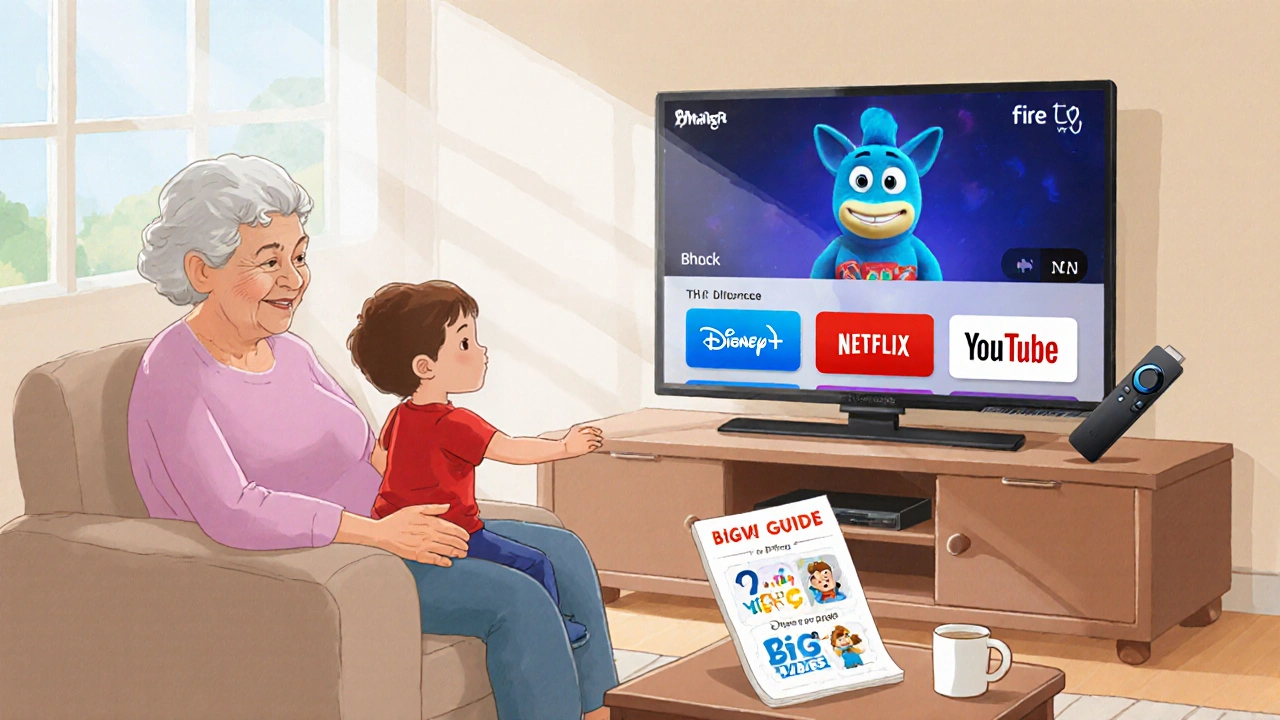
Grandparent Mode: Simple Streaming Setup for Babysitting Visits
Set up a simple, safe streaming experience for grandparents babysitting kids. No apps, no passwords-just one-click cartoon access on Netflix, Disney+, and YouTube.
COPPA and Kids Privacy: How Streaming Apps Handle Children’s Data
COPPA protects kids' data online, but many streaming apps still collect personal info without clear consent. Learn what data is tracked, how apps bypass rules, and what parents can do to protect their children’s privacy today.
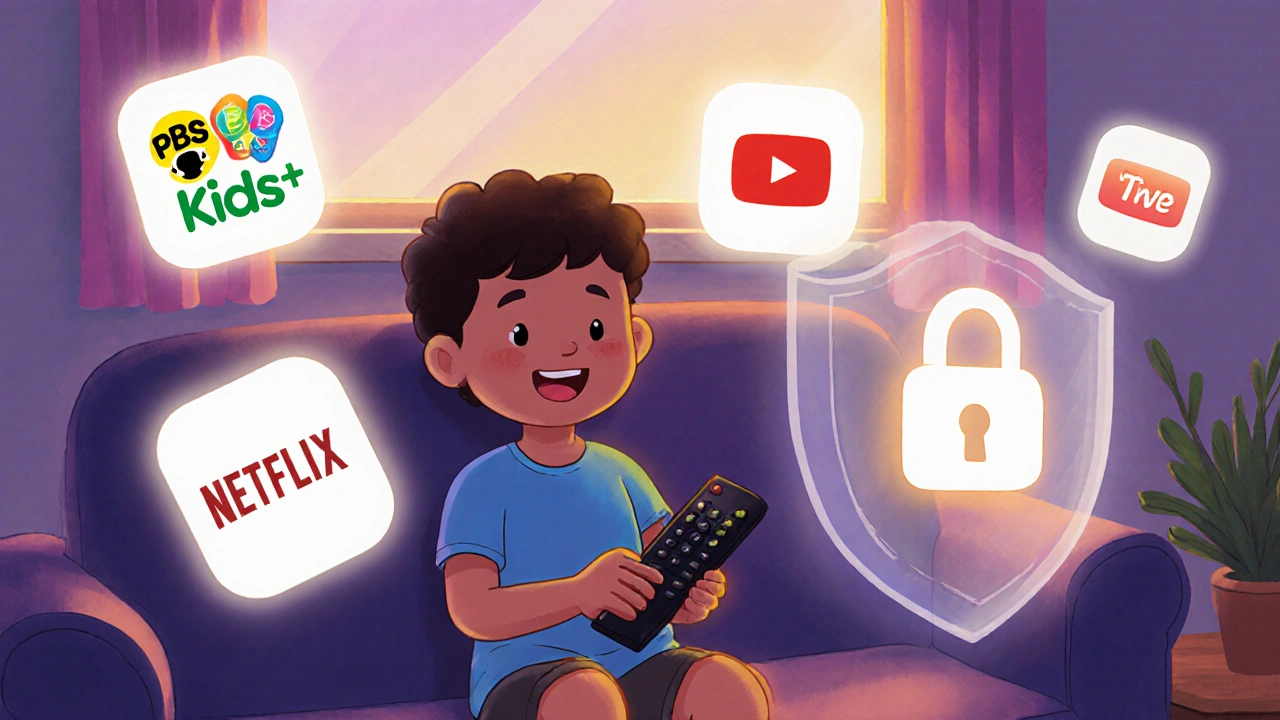
Fire TV Kids Mode: Lock Down Apps and Purchases for Children
Fire TV Kids Mode locks down apps and blocks purchases so children can watch safely without accidental spending or exposure to adult content. Set it up in minutes with a PIN and approved apps.

Best Animated Series for Kids on Various Platforms
Discover the best animated series for kids across Netflix, Disney+, Amazon, and more. Learn what makes a show truly beneficial for children’s development and how to use parental controls wisely.