
Wi-Fi for TV: How to Stream Without Buffering and Fix Common Connection Problems
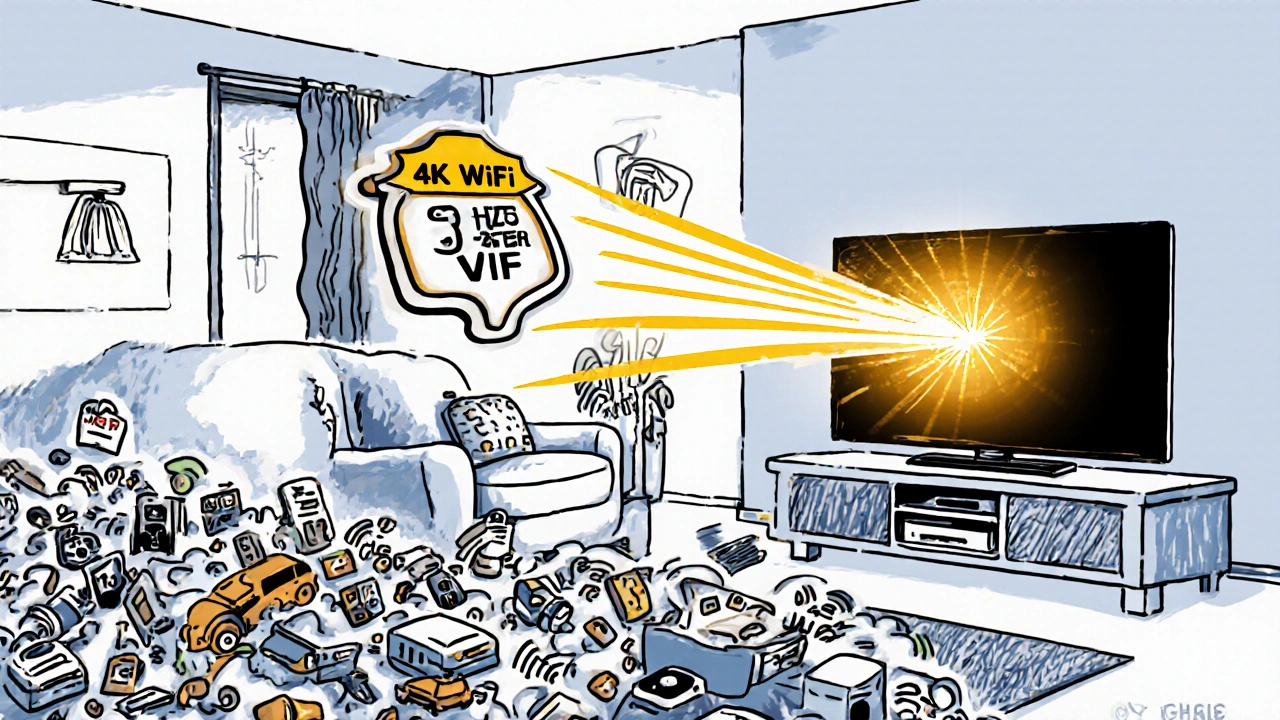
When you turn on your smart TV and it stalls on a loading screen, it’s rarely the show—it’s your Wi-Fi for TV, the wireless network connection that delivers streaming content to your television. Also known as smart TV internet, it’s the invisible bridge between your router and your screen, and if it’s weak, even 4K content turns into a slideshow. Most people assume their internet speed is fine because their phone loads fast, but TVs don’t have the same antennas, placement, or signal tricks. A strong Wi-Fi signal on your phone means nothing if your TV is three rooms away, behind a brick wall, or sitting next to a microwave.
The real problem isn’t always your plan—it’s how your router, the device that sends internet signals to all your gadgets is set up. Many routers are tucked in a closet or behind a TV stand, far from where you actually watch. And while your phone jumps between 2.4 GHz and 5 GHz bands automatically, most TVs stick to the slower 2.4 GHz, which gets crowded with baby monitors, microwaves, and Bluetooth speakers. That’s why you see buffering during peak hours, even with a 100 Mbps plan. You need a dedicated streaming setup, a focused network configuration designed to prioritize video delivery to your TV, not just a general home network.
Fixing this isn’t about buying expensive gear. It’s about placement. Move your router higher, off the floor, and closer to your TV. Use a Wi-Fi extender if your TV is in a basement or far corner. Plug your TV into a 5 GHz network if your router supports dual-band—most modern ones do. And if you’re still having issues, a wired Ethernet connection from your router to your TV is the gold standard. No wireless, no interference, no buffering. It’s that simple. You don’t need to be a tech expert. Just check your TV’s network settings, see which band it’s using, and switch if needed.
What you’ll find below isn’t theory—it’s what works. Real fixes from people who’ve stared at spinning wheels while waiting for the next episode. From how to stop your TV from dropping connection after updates, to why some streaming apps refuse to play unless your signal hits -50 dBm, to how to tell if your router is just too old to handle modern streaming demands. These aren’t guesses. These are the steps people took to finally watch their shows without interruption.
Separate SSIDs for Streaming: Create a Dedicated Network for Your TV
Create a dedicated Wi-Fi network for your TV using separate SSIDs to eliminate buffering and improve streaming quality. No new equipment needed - just smarter network settings.